
The AI Signup Form Builder is replacing the Drag & Drop form builder. During the transition, you decide when to upgrade each of your existing Drag & Drop forms. This article explains how upgrading works and what you gain when you do.
How do I upgrade a Drag & Drop form?
Once you upgrade a form, you can’t switch that form back to the Drag & Drop Editor.
-
Visit Sign Up Forms.
-
Click the Drag & Drop form you want to edit.
-
A window opens asking which builder to use. Select the option to upgrade to the AI Signup Form Builder.
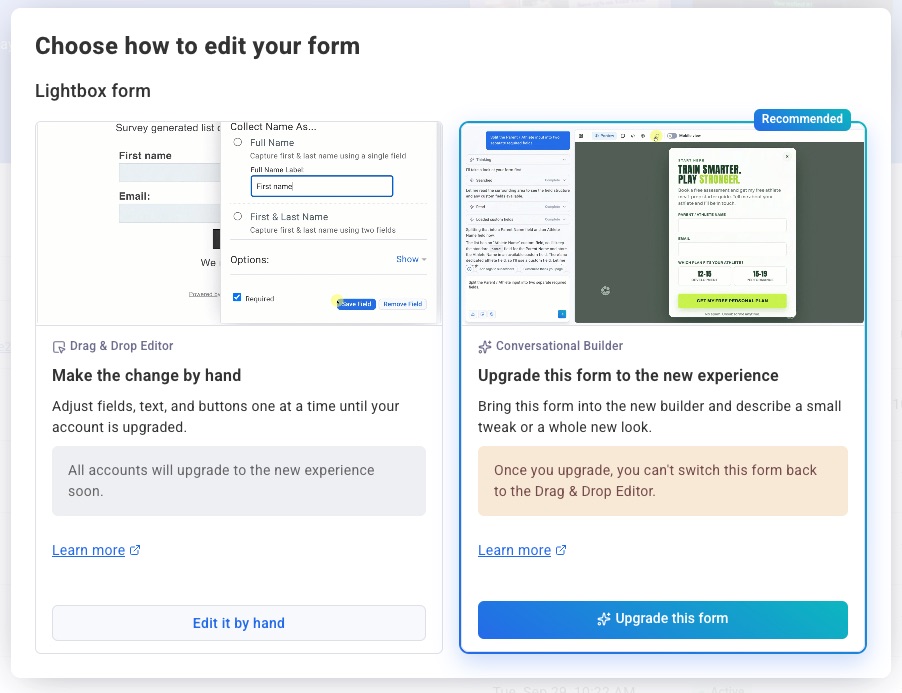
Your form opens in the AI Signup Form Builder, ready to edit through chat. If you'd rather keep working in the Drag & Drop builder for now, choose that option instead. You can upgrade the form any time before the transition ends.
This upgrade option is a beta feature and is not currently available in all accounts.
What do I gain by upgrading?
-
Describe instead of build: Tell the builder what you want in plain language, and it creates the layout, copy, and design for you.
-
Edit through chat: Ask for changes like "make the button green" or "add a first name field" instead of adjusting each element by hand.
-
Brand matching: Share your website URL or upload an image of a form you like, and the builder matches the style.
-
No fixed feature list: The builder attempts whatever you ask for, instead of limiting you to a set menu of options. A few examples of what that opens up:
-
Any form style: pop-up, slide-in, inline, sticky bar, full page, split layout, or a format of your own.
-
Countdown timers that expire on the date you choose.
-
Background images, or a random image pulled from your own website each time the form loads.
-
Animated backgrounds and headers.
-
Multi-step forms that collect details across several screens.
-
-
Not sure whether something is possible? Ask the builder and try it.
-
Version history: Restore any of your last 10 autosaved versions, so you can experiment freely.
-
One snippet for every form: Install AWeber's JavaScript snippet once, and new or updated forms appear on your site with no further code changes.
The results speak for themselves. View these prompt examples and see how they resulted in professional, engaging forms with minimal input needed.
Can I switch a form back after upgrading?
Upgrading is a one-way change. Once a form is upgraded, it opens in the AI Signup Form Builder from then on.
Pro Tip: Want to keep a Drag & Drop version on hand as a backup? Copy the form before you upgrade it.
Can I still create Drag & Drop forms?
New forms are created in the AI Signup Form Builder. You can still copy an existing Drag & Drop form. Copies open in the Drag & Drop builder and become available to upgrade at a later point in the transition.
Will upgrading affect the form on my website?
Your form keeps displaying and collecting subscribers whether you upgrade it or not. The form code already installed on your website continues to work after you upgrade, so there's no need to replace it.
How can I remove a Drag & Drop form from my website?
A Drag & Drop form stays on your website until you remove its form code from your site. To remove it:
-
Open the page, template, or site builder where you installed the form.
-
Find the AWeber form code. It matches one of the two formats below.
-
Delete the entire form code, then save or publish your changes.
If you installed the form on more than one page, remove the code from each page.
JavaScript form code
This format is two parts: an empty div and a script. Delete both.
<div class="AW-Form-123456789"></div>
<script type="text/javascript">(function(d, s, id) {
    var js, fjs = d.getElementsByTagName(s)[0];
    if (d.getElementById(id)) return;
    js = d.createElement(s); js.id = id;
    js.src = "//forms.aweber.com/form/89/123456789.js";
    fjs.parentNode.insertBefore(js, fjs);
    }(document, "script", "aweber-wjs-xxxxxxxxx"));
</script>
Raw HTML form code
This format is much longer. Delete everything from the <!-- AWeber Web Form Generator 3.0.1 --> line through the <!-- /AWeber Web Form Generator 3.0.1 --> line. The example below is shortened. Your code includes many more style lines.
<!-- AWeber Web Form Generator 3.0.1 -->
<style type="text/css">
#af-form-123456789 .af-body{font-family:Verdana, sans-serif;font-size:11px;color:#000000;}
#af-form-123456789 {border-style:solid;border-width:1px;border-color:#8C8C8C;background-color:#FFFFFF;}
/* ...more form styles... */
</style>
<form method="post" class="af-form-wrapper" accept-charset="UTF-8" action="https://www.aweber.com/scripts/addlead.pl">
<div style="display: none;">
<input type="hidden" name="meta_web_form_id" value="123456789" />
<input type="hidden" name="meta_split_id" value="" />
<input type="hidden" name="listname" value="awlist1234567" />
<input type="hidden" name="redirect" value="https://www.aweber.com/thankyou.htm?m=default" id="redirect_xxxxxxxxxxxxxxxxxxxxxxxxxxxxxxxx" />
<input type="hidden" name="meta_adtracking" value="My_Web_Form" />
<input type="hidden" name="meta_message" value="1" />
<input type="hidden" name="meta_required" value="name,email" />
<input type="hidden" name="meta_tooltip" value="" />
</div>
<div id="af-form-123456789" class="af-form">
<div id="af-body-123456789" class="af-body af-standards">
<div class="af-element">
<label class="previewLabel" for="awf_field-100000001">Name:</label>
<div class="af-textWrap"><input id="awf_field-100000001" type="text" name="name" class="text" value="" tabindex="500" /></div>
</div>
<div class="af-element">
<label class="previewLabel" for="awf_field-100000002">Email:</label>
<div class="af-textWrap"><input id="awf_field-100000002" type="email" name="email" class="text" value="" tabindex="501" /></div>
</div>
<div class="af-element buttonContainer">
<input name="submit" class="submit" type="submit" value="Submit" tabindex="502" />
</div>
<!-- ...privacy policy and footer elements... -->
</div>
</div>
<div style="display: none;"><img src="https://forms.aweber.com/form/displays.htm?id=xxxxxxxxxxxx" alt="" /></div>
</form>
<!-- /AWeber Web Form Generator 3.0.1 -->
Note: The values in these examples are placeholders, so your form code will contain different values. Your code may also look different if someone edited it after you installed it, or if your site uses software that changes its code, such as site optimization software. To find the form code, search your site's code for forms.aweber.com or AWeber Web Form Generator. If you're not sure how to access your site's code, contact a web developer for help.