
In this article, you'll find instructions on how to place an AWeber sign up form on your Leadpages page using HTML code.
Note: Using HTML on your Leadpage is only possible using Leadpage's Drag and Drop builder.
Build your landing pages in AWeber: You can create landing pages right in your AWeber account with the AI Landing Page Builder, so you don't need a third-party service like Leadpages. Every page connects to your AWeber list automatically. Already have pages in Leadpages? Our free account migration service can move your existing pages to AWeber for you.
Step by Step Instructions
1. First, you'll want to create your sign up form within your AWeber account. If you're having trouble doing so, check out our article on how to create a sign up form.
2. Then, after logging into your Leadpages account, create a new Leadpage or select the existing Leadpage you would like to add your AWeber sign up form to. Once you have that page in front of you, delete whatever sign up form already exists on that page.
3. Click the "Widgets" button, found in the top left corner.

4. Select "Show More".
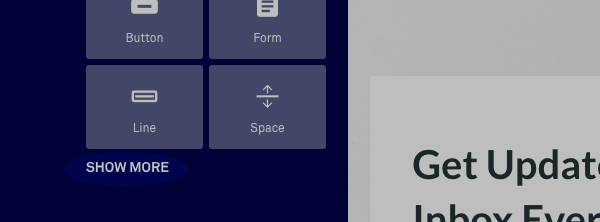
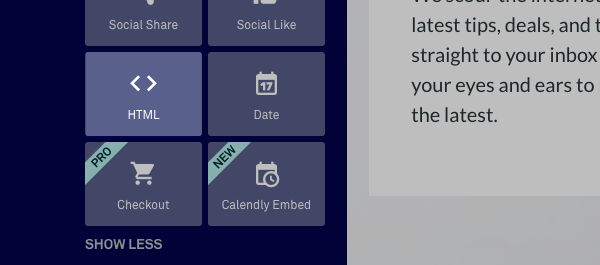
5. Locate the HTML widget and drag it into your Leadpage where you would like your form to appear.
6. After placing your HTML widget on your page and clicking it, you should see a text box appear labeled, "HTML". Copy the HTML generated within your AWeber account, and paste it into that box. Then, click "Save".
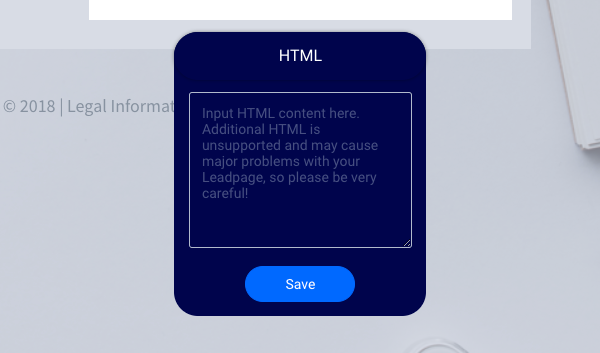
Note: If you are not sure where to find your HTML within your AWeber account, take a look at our Knowledge Base article for instructions.
Clicking the "Preview" button in the top right corner of your screen will enable you to view the page as it will appear once published.
Congratulations! You have successfully placed an AWeber sign up form on your Leadpages page using HTML! Subscribers who submit their information through this form will successfully be added to your AWeber list.
Using a Form from the AI Signup Form Builder
If you built your form with the AI Signup Form Builder, get your form code from the builder chat, then paste it into Leadpages using steps 2 to 6 above.
-
Click the "Sign Up Forms" tab and open your AI signup form.
-
In the chat, ask the builder for the HTML code of your form without styles. For example: "Give me the HTML code for this form without any styles so I can paste it into Leadpages."
-
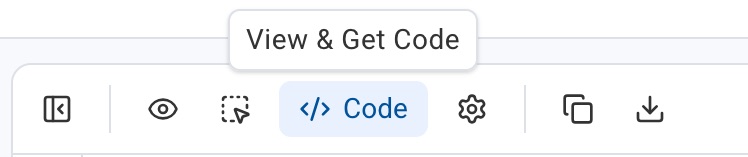
Click the "View & Get Code" icon at the top of the page.
-
Your form's HTML code displays. Copy it.
-
In Leadpages, paste the code into the HTML widget as described in step 6 above, then click "Save."
Note: Leadpages may not accept forms that include custom styles, animations, or scripts. Unstyled code gives you a basic form that you can style with Leadpages' own design settings.