
The AI Landing Page Builder is replacing the Drag & Drop landing page builder. During the transition, you decide when to upgrade each of your existing Drag & Drop landing pages. This article explains how upgrading works and what you gain when you do.
How do I upgrade a Drag & Drop landing page?
Once you upgrade a landing page, you can’t switch that page back to the Drag & Drop Editor.
-
Visit Landing Pages.
-
Click the Drag & Drop landing page you want to edit.
-
A window opens asking how to edit your page. Click Upgrade this page.
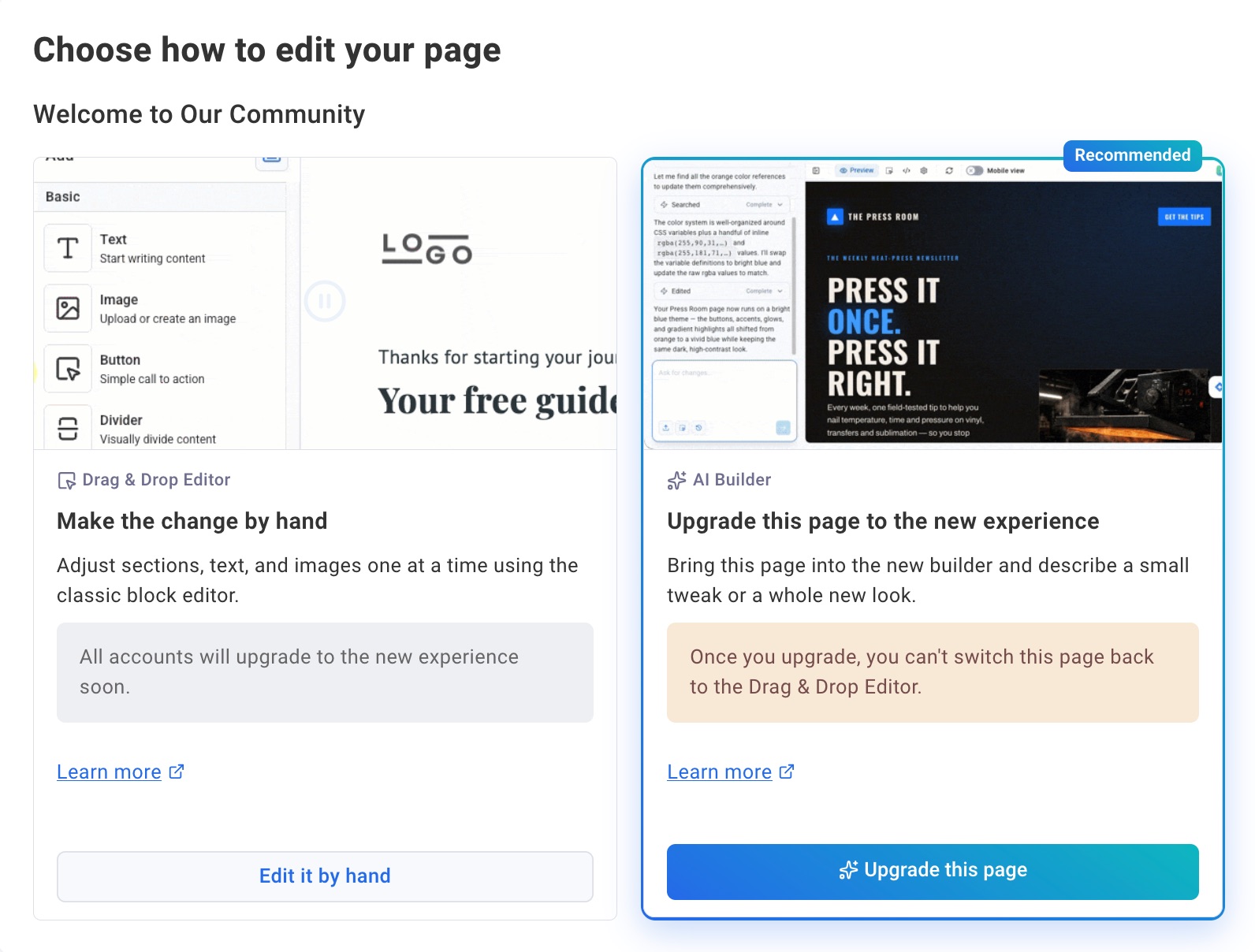
Your page opens in the AI Landing Page Builder, ready to edit through chat. If you'd rather keep working in the Drag & Drop Editor for now, click Edit it by hand instead. You can upgrade the page any time before the transition ends.
This upgrade option is a beta feature and is not currently available in all accounts.
What do I gain by upgrading?
-
Describe instead of build: Tell the builder what you want in plain language, and it creates the layout, copy, images, and interactive elements around your goal.
-
Edit through chat: Ask for changes like "make the headline bigger" or "add a testimonials section below the signup form" instead of adjusting each section by hand.
-
Brand matching: Share your website URL or upload an image of a page you like, and the builder matches the style.
-
No fixed feature list: The builder attempts whatever you ask for, instead of limiting you to a set menu of blocks. A few examples of what that opens up:
-
Any page type: lead magnet downloads, webinar or event registrations, long-form sales pages, product launches, link-in-bio pages, coming soon pages, or a format of your own.
-
Countdown timers that expire on the date you choose, perfect for launches and limited-time offers.
-
Background images, or a random image pulled from your own website each time the page loads.
-
Animated backgrounds, headers, and scroll effects that bring sections to life as visitors move down the page.
-
Multi-step signup forms that collect details across several screens.
-
Sticky call-to-action bars that stay in view as visitors scroll.
-
Testimonial carousels, FAQ accordions, pricing tables, and feature comparison grids.
-
Image galleries and embedded videos to showcase your products or content.
-
-
Not sure whether something is possible? Ask the builder and try it.
-
Version history: Restore any of your last 10 autosaved versions, so you can experiment freely.
-
One place for every page: All of your landing pages are listed together in one view, whichever builder they were created in.
To get started, view Creating a Landing Page with the AI Landing Page Builder. For more answers, visit the AI Landing Pages FAQ.
Can I switch a page back after upgrading?
Upgrading is a one-way change. Once a landing page is upgraded, it opens in the AI Landing Page Builder from then on.
Pro Tip: Want to keep a Drag & Drop version on hand as a backup? Copy the page before you upgrade it.
What happens if I don't upgrade?
Your Drag & Drop landing pages keep working in the meantime. All accounts will upgrade to the new experience soon, so any pages you haven't upgraded yet will move to the AI Landing Page Builder at that point.
Can I still create Drag & Drop landing pages?
For now, new landing pages can be created in either builder. Creating new Drag & Drop landing pages will be retired soon, after which all new pages are created in the AI Landing Page Builder.
Will upgrading affect my published landing page?
Your landing page keeps working as it always has, whether you upgrade it or not. Published pages stay live and keep collecting subscribers, and any links you've already shared continue to work, so there's no need to update them.