Element Definition: A modular content block (such as text, image, or button) that can be added to your email layout.
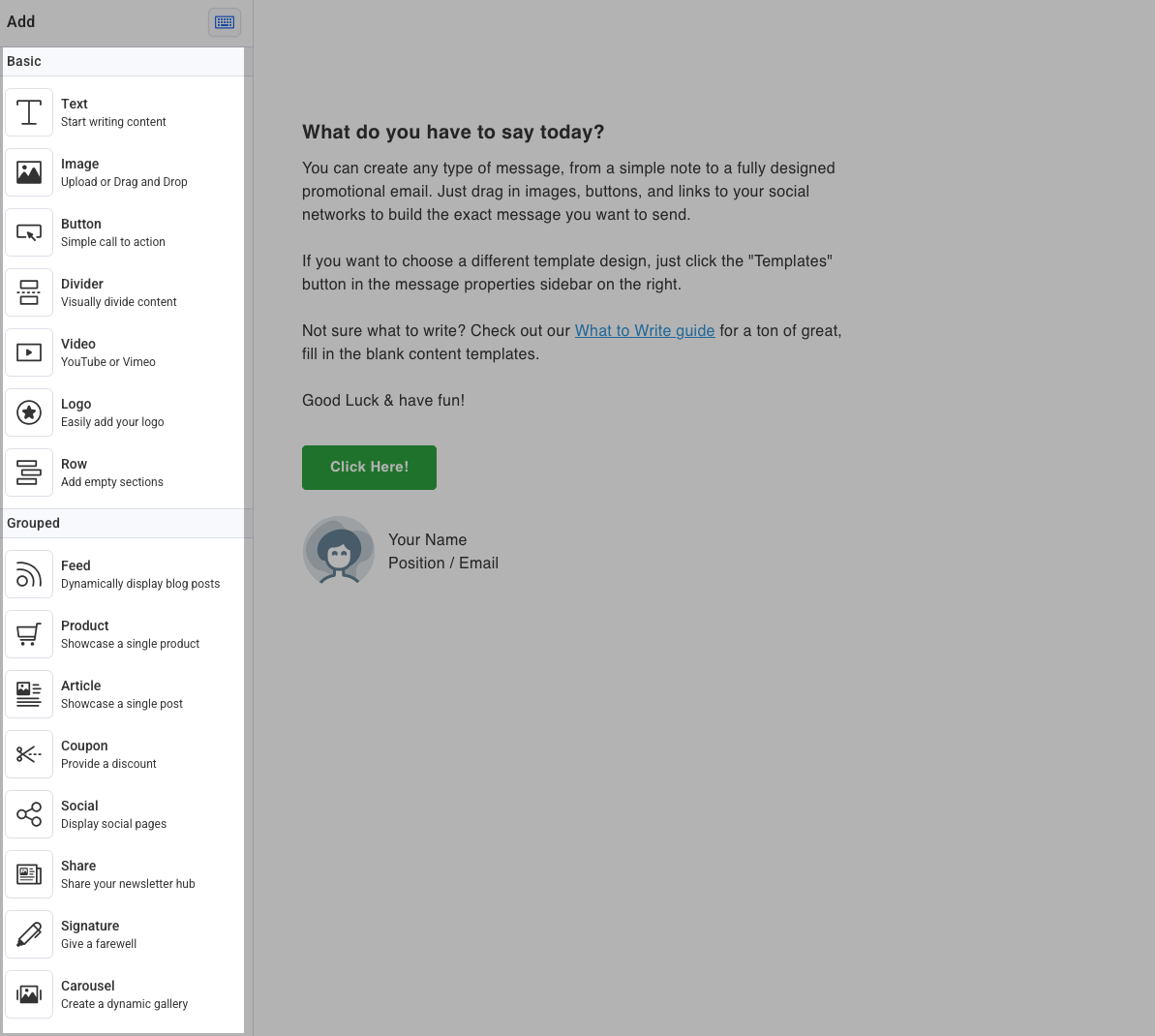
A message is made of one or more elements. You can get creative with the different element blocks or keep it simple with a single text element. See below to learn what each of the elements do.
Elements can be dragged onto the email canvas, or added using slash commands.
Text
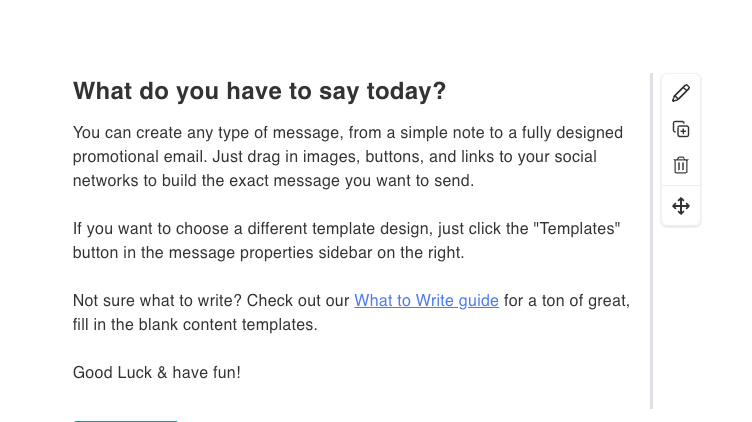
Use the "Text" element to write paragraphs of content.
-
Use the font bar above the text to set headings, format your text and add images
-
Highlight text for quick formatting
-
Learn how to write even faster with markdown and keyboard shortcuts.
Article
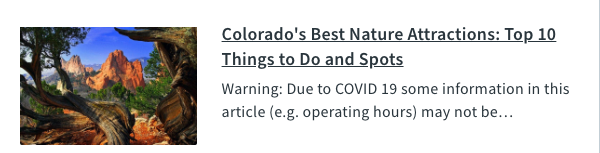
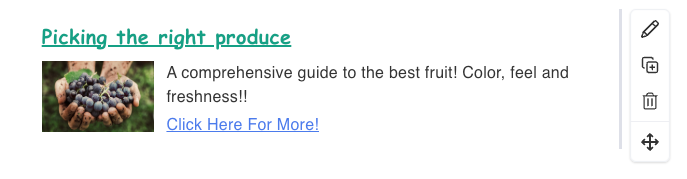
Use an "Article" element to create a uniform headline, a text area, and a "read more" link. Click the text to edit it. Paste in the link and choose your image with the settings to the right.
Image
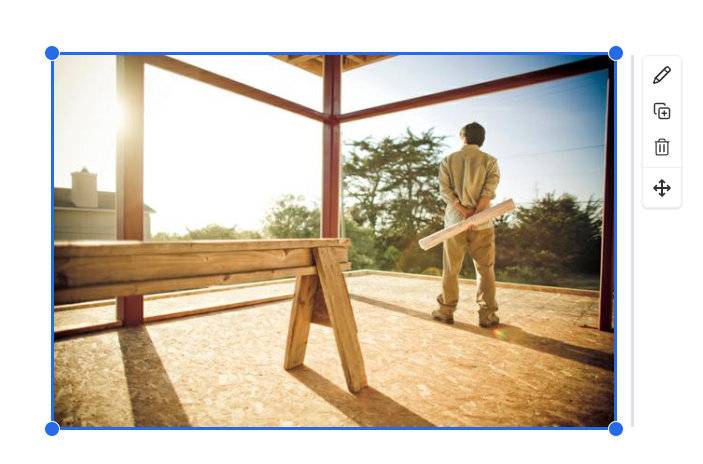
Use an "Image" element to add add images and gifs to your message. Click to show the image settings to the right where you can:
-
Upload files from your computer
-
Search the image gallery
-
Create an image with Canva
-
Read these guidelines to learn how to use images in your email
Video
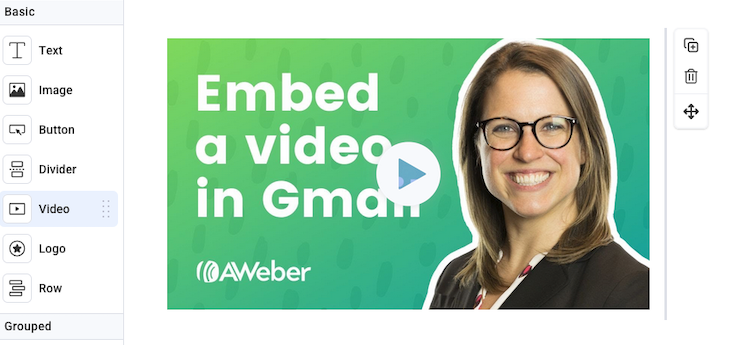
Use the "Video" element to add a YouTube or Vimeo videos to your message. Click to show the video settings to the right where you will add the link to your video.
-
This will display a screenshot of your YouTube or Vimeo video and hyperlink the image to the URL of the YouTube or Vimeo video.
Button
Use the "Button" element to create a clickable button. Click to see the button settings to the right where you can:
-
Edit the button copy and hyperlink
-
Customize the look and feel.

Social
Use the "Social" element to link out to different social media profiles. Click to see the social settings to the right where you can add the links to your profiles.

Product
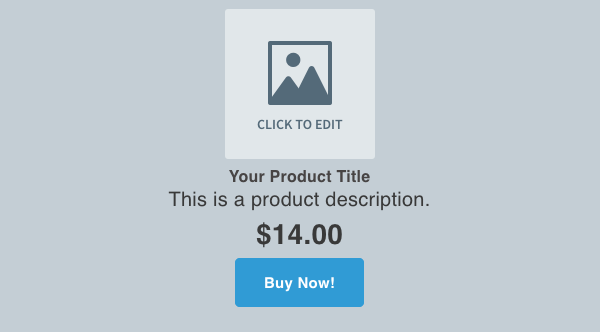
Use the "Product" element to create a uniform look for products you want to promote. This includes and area to upload an image, a text element for your product name and description, and a button to link to your order page.
Coupon
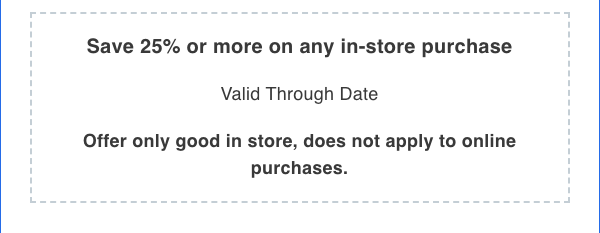
Use the "Coupon" element to highlight special offers or discounts. Click to adjust the background color and border with the settings to the right.
Logo
Use the "Logo" element to automatically display your logo if you set one up on your List Settings page.
-
If you update the logo in your list settings, it will update on draft messages

Signature
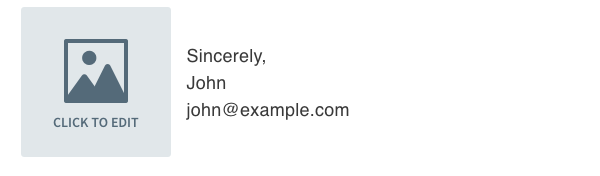
Use "Signature" to add a signature file to your message. Learn how to edit your signature file.
Divider
Use the "Divider" element to add a visible separation between elements with dotted, dashed, or solid lines. Click to setup the look and feel in the settings to the right.
-
Use the top and bottom padding to add space above and below your line
-
You can set your style to none if you'd like to create a blank space between elements

Share
Use the "Share" element allows readers to share your broadcast to popular social networking sites like Facebook, Twitter, and LinkedIn. Add which services you would like to share to from the Share menu to the right.

Row
Use the "Row" element to add a new row in your message. You can fill that row with any of the other blocks, such as images, text, headlines, etc. You can even add columns to add different blocks side by side.

Carousel
Use the "Carousel" element to add a set of images readers can click through. Before you are able to use this feature, you will need to be designated as an AMP-approved sender.
Feed
Use the "Feed" element to add recent blog posts to your messages. You will need your RSS Feed URL which you can paste in the Feed options in the right settings menu.
-
You will need your RSS Feed URL to load your feed items (like a blog post, YouTube video, or podcast episode)
-
Read more on how to set up your feed and customize the look and feel
-
Learn how to automatically send a message with the latest from your blog or Youtube channel with campaigns
You can also use this element to paste your website URL and we'll automatically expand this to show your web page's title, description, and image. Learn how magic links work.