
In this article, we're going to discuss how you can view specific information about Ecommerce sales from your landing page, including reports and subscriber data.
With AWeber landing pages, you can now accept payments through Stripe by utilizing the Ecommerce element. You can use the Ecommerce element to sell different types of products, including:
-
eBooks and PDFs
-
Access to your webinars
-
Memberships
-
"How to" guides for your audience
-
Illustrations and templates
-
Entry to a program or course you've developed
-
Access to an event
-
Tips and donations to fundraise for your passion project
You can easily create a landing page by using a pre-built template or designing the page from scratch. With the Ecommerce element, it takes a few clicks to add the product to your page and start generating sales--simply enter a product name and price. Stripe will handle the complexities of charging credit cards, chargebacks, refunds, etc.
To begin selling, you must first connect your account to Stripe. Learn how to connect Stripe and AWeber with a step-by-step walkthrough.
Fees
For each sale you make using Stripe and AWeber, there are fees for each transaction. Learn more about Stripe pricing. AWeber fees are as followed:
-
AWeber Pro: 0.60% per transaction
-
AWeber Free: 1.00% per transaction
Subscriber Activity
-
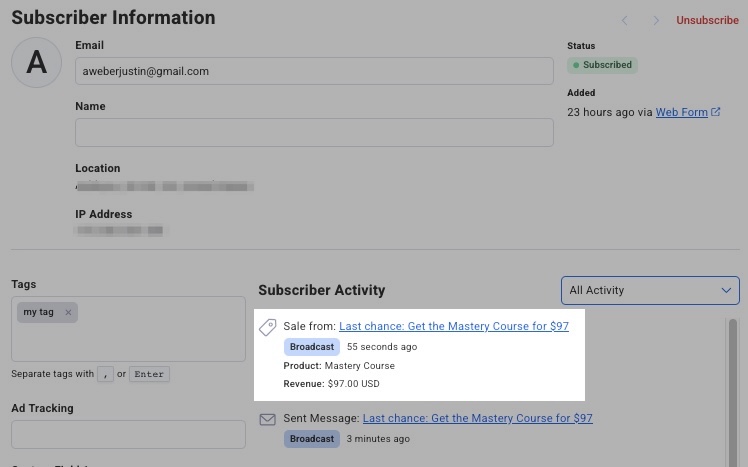
You can view sales for a specific subscriber from their Subscriber Activity. To view this, simply go to the Subscribers page and click on the email address of the subscriber (in blue).

-
In the Subscriber’s Activity, you will see all of the sent messages, opens, clicks, and sales. Sales will be listed under the heading "Sale from: " and will include the subject line of the message the sale was made from, the product name, and the revenue from that sale.
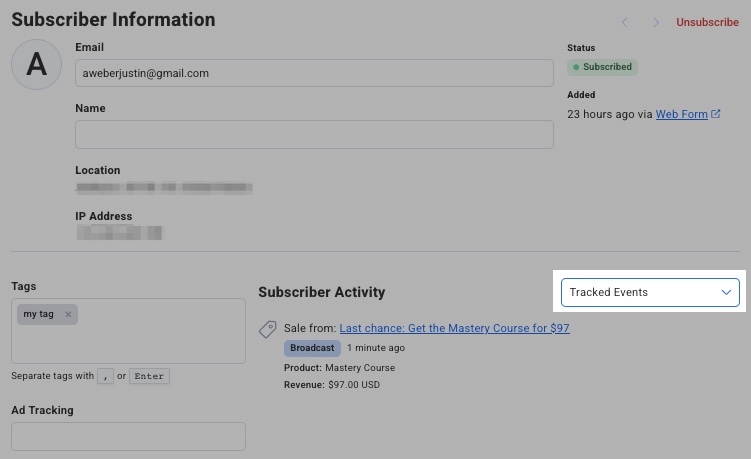
Note: You can filter for “Tracked Events” to view only tracked sales and page hits for a particular subscriber.
Reports
-
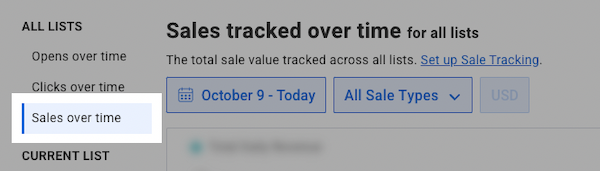
Sales will also be tracked from the "Reports" page. You can view a breakdown of sales-per-day using the "Sales over time" report.
Stripe
-
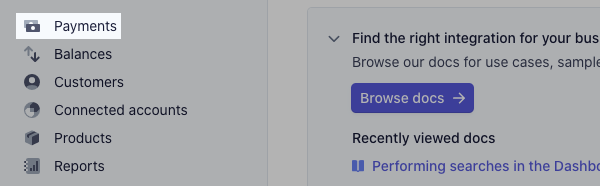
You can view the payment details of your customers from the "Payments" tab on the right-hand side of your Stripe dashboard.
Filter Options
-
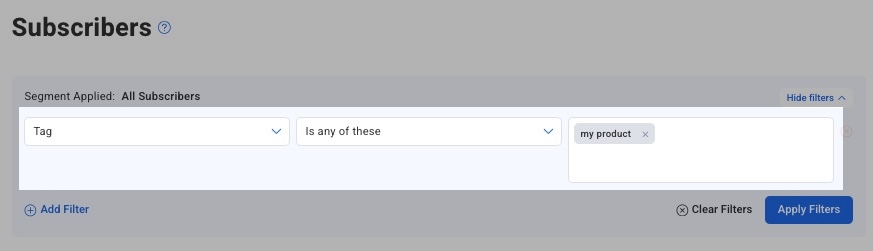
You can filter for subscribers who purchased through a few different options in the filters menu at the top of the Subscribers page. For example, you can filter by the specific that you applied to your payment form.
-
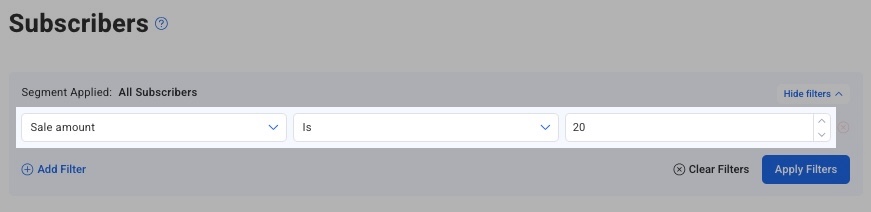
You can also filter by Sale Amount.
And that's it! Utilizing reports and tracking subscribers who make purchases can help you evaluate the success of your landing pages and further target your subscribers.