
If you've forgotten your password, or you've ever needed to reset your password, you can always reset your password from the login page. This article explains how to reset your password.
Resetting Your Password
-
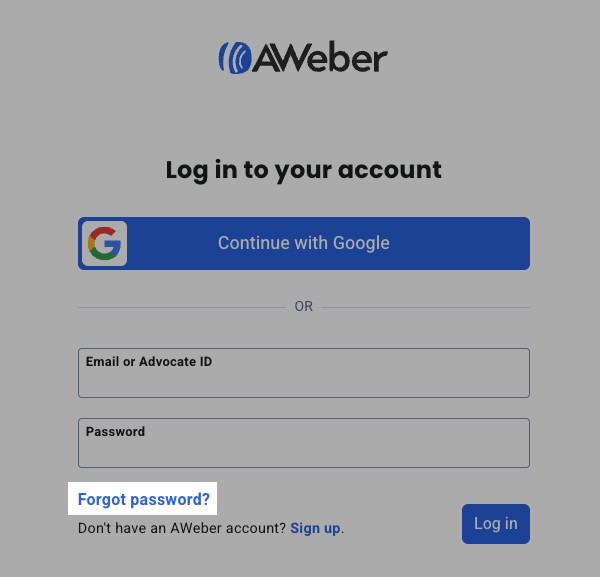
From the login page, click on the "Forgot password?" link.
-
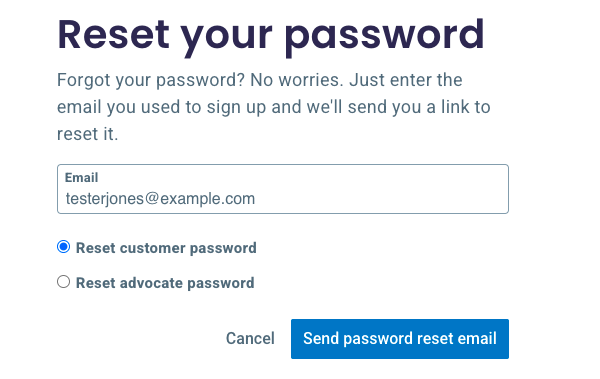
Now, enter in the email address on file for your AWeber account, select the type of account in question (customer account or advocate account), and click the "Send password reset email" button.
-
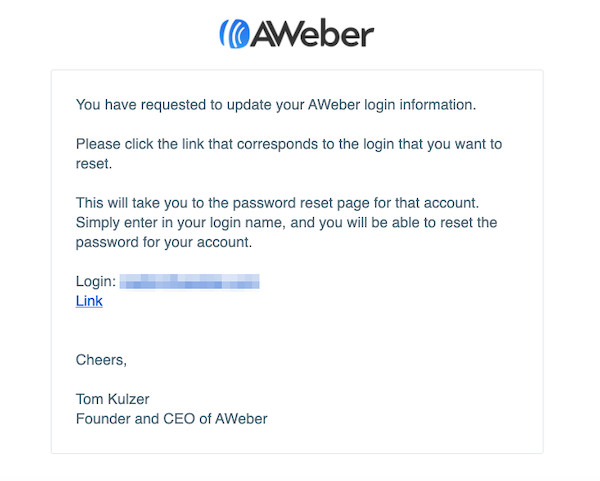
Check your inbox for an email from AWeber. Open that email, and click the link provided to reset the password.
-
You'll be directed to an AWeber page where you can reset your password. Please enter the email address on file for the AWeber account, and then enter the new password you would like to use.
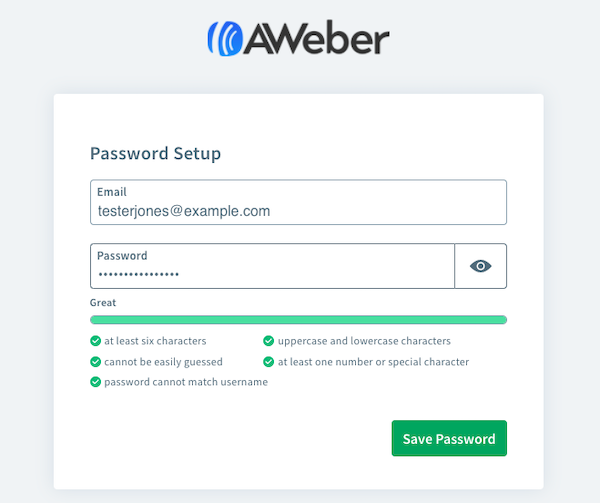
Note: Passwords must be at least 6 characters and must contain 3 of the 4 types of characters:
-
lowercase (a-z)
-
uppercase (A-Z)
-
numeric (0-9)
-
special characters (~`!@#$%^&*()_-+={[}]|:;"'<,>.?/)
-
That's it! Once you've created your new password, just click the green "Save Password" button and you'll be logged into your account. If you've saved your password using your browser's auto-fill, you will need to update your browser's auto-fill credentials for your AWeber login in order to prevent you from needing to continually keep resetting your password.
Updating password while already logged in
You can also change your password within the control panel of your account after you’ve already logged in.
Access the "My Profile" section of your account. Enter your current password into the Current Password box, then enter your new password into the second Password box to update. Please make sure that it meets the listed password strength requirements, or else you will not be allowed to proceed.
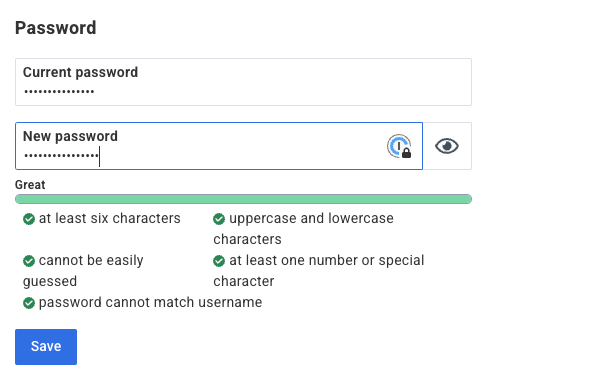
Don't forget to click on the "Save" button in the bottom right corner to record your change.
When you navigate to any other page and during any other future login, you will be need to use your email address and the new password you set.
If you are unable to log into your account and are trying to reset your password in order to access the account, please follow the directions in this article:
Why am I having trouble trying to log into my account?