
In this article, we will walk through the steps to update your billing information in your account settings.
Step By Step Instructions
-
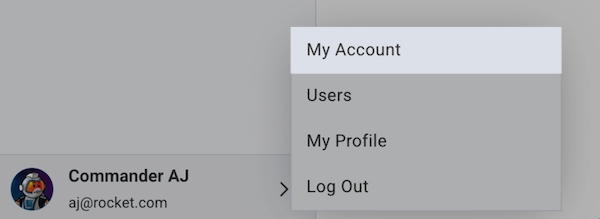
To access your Billing Center, click on your user profile in the bottom-left corner of your control panel and select My Account.
-
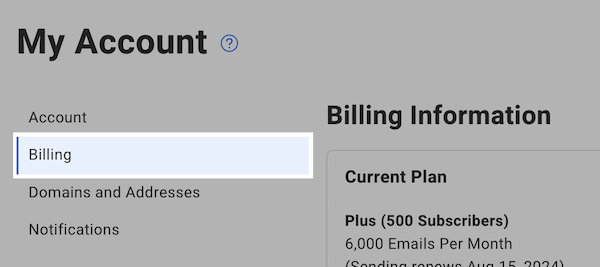
From the left-hand side menu, click Billing.
-
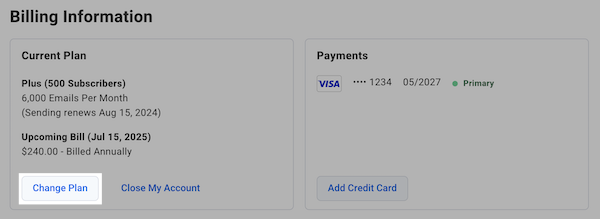
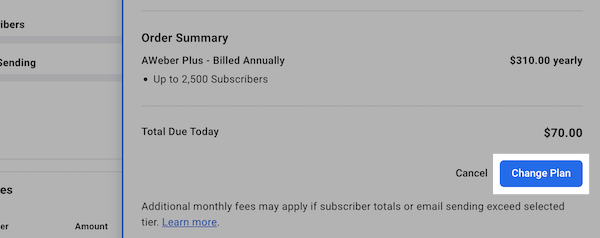
On the Billing page, locate the Current Plan section and click the "Change Plan".
-
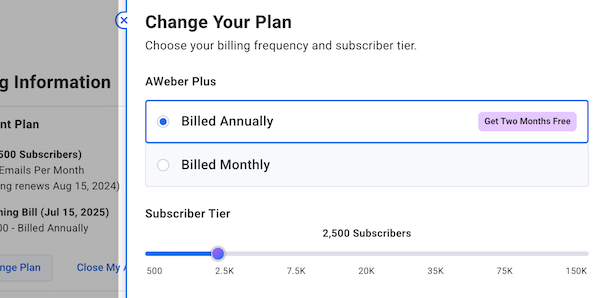
Select the billing term and subscriber tier you prefer.
-
Click the "Change Plan" button to confirm your updates.
Your account will switch to the new billing plan on your next invoice date. If you need any help, contact our Customer Solutions Team.
You can upgrade your plan directly from your account dashboard. However, if you need to downgrade, you must contact AWeber’s Customer Solutions Team to request a downgrade.
This self-service plan change is only available for active accounts. If your account is on hold, you will need to contact Customer Solutions to reactivate.
How do I upgrade to AWeber Plus?
If you are currently on the AWeber Free or AWeber Lite plan and want to take advantage of the additional features offered by AWeber Plus, you can easily upgrade your account. Benefits of upgrading to AWeber Plus include:
-
Unlimited lists
-
Unlimited landing pages
-
Unlimited campaigns
-
Unlimited users
-
Advanced segmentation and reporting features
-
... and more!
Your upgrade to AWeber Plus will take effect immediately upon successful payment. If you need any assistance, please contact our Customer Solutions Team.
How do I downgrade from AWeber Plus to AWeber Lite?
If you are currently on AWeber Plus, you may be eligible for an AWeber Lite plan. In order to qualify for AWeber Lite, you must meet the following criteria:
-
1 list
-
No more than 3 landing pages
-
No more than 3 campaigns in a draft or active state
-
No more than 3 users on your account
-
No more than 1 saved segment
If your AWeber account already meets these criteria, simply contact our Customer Solutions Team and they'll be able to downgrade your account from AWeber Plus to AWeber Lite.
How do I downgrade from AWeber Plus to AWeber Free?
If you are currently on AWeber Plus, you may be eligible for an AWeber Free plan. In order to qualify for AWeber Free, you must meet the following criteria:
-
1 list
-
Less than 500 total subscribers
-
No more than 1 landing page
-
No more than 1 campaign in a draft or active state
-
No more than 1 user on your account
If your AWeber account already meets these criteria, simply contact our Customer Solutions Team and they'll be able to downgrade your account from AWeber Plus to AWeber Free.
If your AWeber account does not currently meet any of these criteria, you are welcome to consult the following help articles to become eligible, or you can once again consult our Customer Solutions team for assistance.
How do I keep my existing plan, but downgrade my subscriber tier?
If you are currently on AWeber Plus or AWeber Lite, you may want to downgrade your subscriber tier depending on your business needs.
If you'd like to downgrade your AWeber subscriber tier to better match your current list size, our Customer Solutions team is here to help. Downgrades are not automated and must be handled manually to ensure your account and billing details are updated correctly. When reaching out, be sure to include your account login email, verify a recent invoice number from your account, and let us know you’d like to downgrade your subscriber tier to the new desired tier.
Important Timing Considerations for Subscriber Tier Downgrades
When downgrading your subscriber/message tier, please be aware of the following timing restrictions:
Email Usage Allowances and Downgrade Eligibility
Your downgrade may be restricted if your current or historical email usage exceeds your target tier's email send allowance. Each subscriber tier includes a maximum number of emails you can send per billing cycle.
Downgrading to a lower pricing tier can only be done if your sending habits reflect the tier you’re planning to switch to and if you plan to maintain both the subscriber count and sending volume allowances of that tier for the entire billing cycle.
If your subscriber count or sending needs fluctuate significantly, you will need to stay on a plan that accommodates your peak volume requirements to ensure uninterrupted service and avoid unexpected billing complications.
Stating that you plan to send less in the future is not sufficient for downgrade eligibility; eligibility is determined by your account's demonstrated usage history. If it is determined that your usage patterns are not suitable for a lower tier, your downgrade request will not be approved.
Previous downgrade approvals do not guarantee eligibility for future downgrade requests. Each request is evaluated independently based on your account's demonstrated usage history at the time of the request.
Note: Email sends do not roll over between billing cycles. Each billing cycle's send allotment resets regardless of usage in the previous cycle.
When Downgrades Cannot Be Processed Immediately
If your recent sending history exceeds what your target tier allows, your downgrade cannot be processed until your usage history reflects a pattern consistent with the lower tier's send allowance. Simply waiting for the current billing cycle to reset is not sufficient; eligibility is based on demonstrated sending behavior across recent billing cycles, not just current usage.
Example: If you're currently on the 100,001-150,000 subscriber tier (1,800,000 emails/month) and want to downgrade to the 75,001-100,000 tier (1,200,000 emails/month), but your recent billing cycles show sending volumes above 1,200,000 emails/month, your downgrade will not be approved until your historical usage consistently falls within the lower tier's allowance.
Note: The start of a new billing cycle does not reset your eligibility. Eligibility is based on your historical sending volume across recent billing cycles, not just the current one.
Before Requesting a Downgrade
To ensure a smooth downgrade process:
-
Check your current email usage in your account's billing section
-
Compare your usage to the email limits of your target tier
-
If you've exceeded the target tier's sending allowance, you will need to demonstrate consistent sending within that tier's limits before a downgrade can be approved.
-
Ensure your subscriber count qualifies you for the lower tier
What are the different features available between AWeber Plus, AWeber Lite, and AWeber Free?
-
AWeber Plus - All features provided
-
AWeber Lite - Most features available with limitations around items such as List profiles, Landing pages, Email automations, Users, Save and send to segments.
-
AWeber Free - Less features available with limitations for items such as Subscriber limit, Email sends, List profiles, Landing pages, Email automations, Users, Save and send to segments
For a full breakdown on the differences between AWeber Plus, AWeber Lite, and AWeber Free, please view our pricing page.