
You can delete multiple subscribers from your lists or delete an individual subscriber from the Subscribers page. In this article, we are going to walk through the steps to search for and delete a specific subscriber from your list.
Step By Step Instructions
-
Click the "Subscribers" tab and select "Subscribers."
-
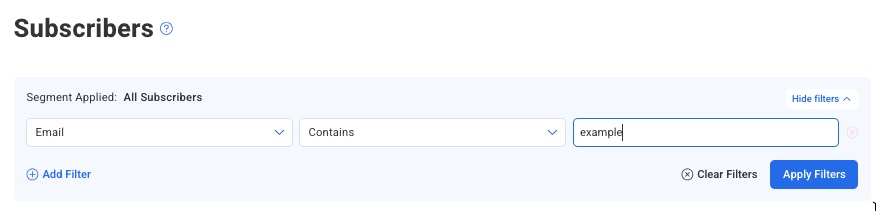
Search for the specific subscriber that you would like to delete using the filter menu at the top of the Subscribers page. First, select the criteria that you would like to search. In this example, we are going to search based on the email address. Then, click the "Apply Filters" button.
-
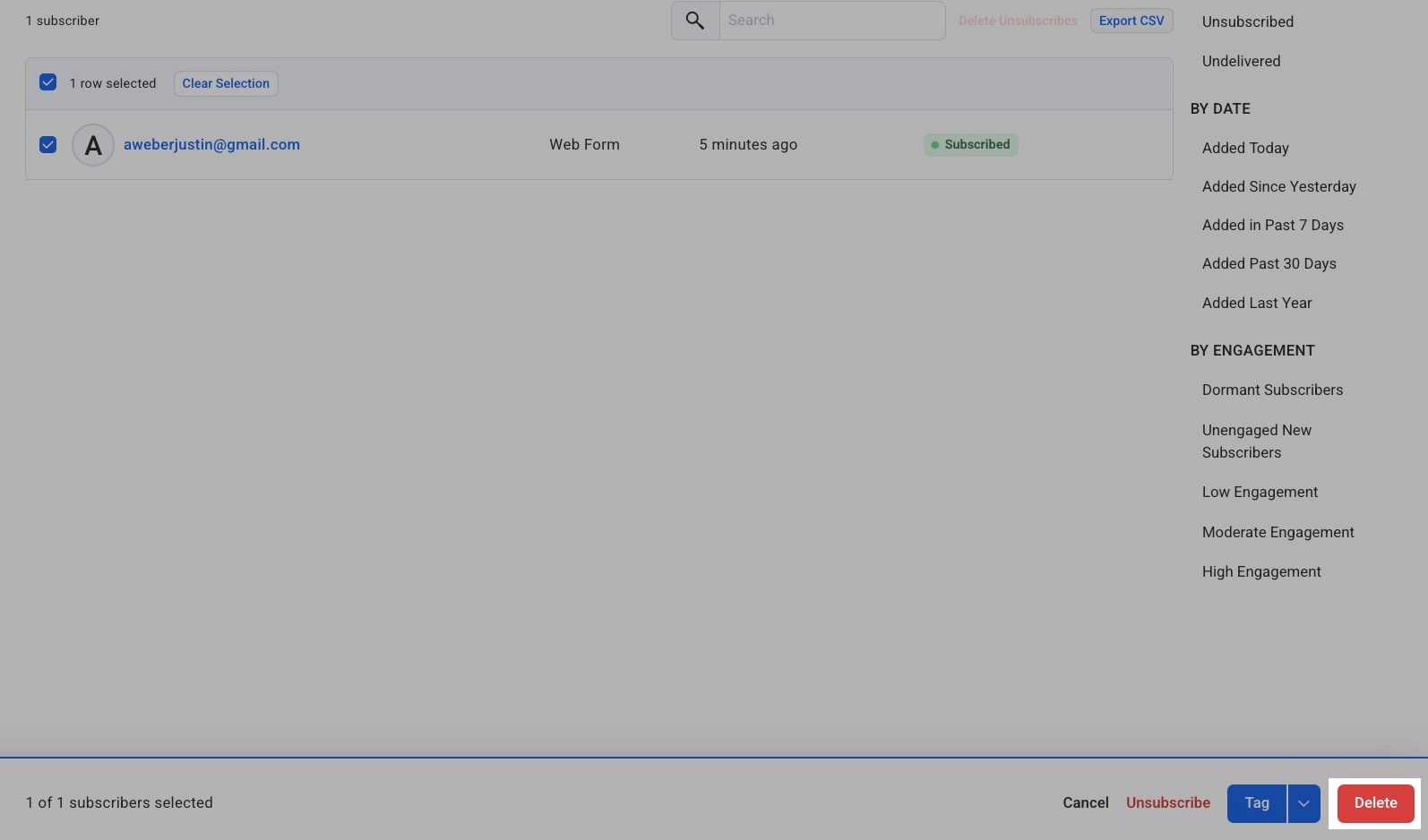
Once the search is complete, click the checkbox next to the name of the subscriber you would like to delete.

-
Then, click the “Delete” button in the bottom right of the screen.
And that's it! The subscriber's data will no longer be stored in your list.
FAQ
-
Delete button is grayed out: Only 1 page of subscribers can be deleted at a time. If you have more than one page selected, then you will have to deselect the other pages in order to process the deletion. If you need to bulk delete many subscribers, see the next bullet point below this one.
-
Bulk deleting subscribers: if you have a list of subscribers you would like to delete in bulk, that list can be pasted into the bulk unsubscribe tool to unsubscribe those subscribers in bulk. You can then take steps to delete your unsubscribes.
-
Restoring subscribers: If subscribers are deleted by mistake, they can be restored within 30 days of deletion by reaching out to the Customer Solutions team. If 30 days pass after a subscriber is deleted, they can no longer be restored.