
In this article, we're going to walk through the steps to create a custom thank you page for your forms using the landing page builder.
Landing pages are a great way to grow your subscriber list if you don't have a website. The thank you page of your form is where subscribers will be redirected immediately after submitting their information. You can include a lot of different information on this page besides just the "thank you." For example, you can encourage subscribers to follow your social media platforms. You can use this thank you page for the form on your landing page or for a regular sign up form.
For more tips on how to utilize the thank you page, click here to view a video from AWeber's YouTube channel.
Step By Step Instructions
Using the AI Landing Page Builder
If you built your landing page with the AI Landing Page Builder, you can ask the AI to create your thank you page and connect it for you.
Create the thank you page
-
Visit the AI landing pages tab.
-
Create a new landing page with the AI Landing Page Builder.
-
In the chat, ask the AI for a thank you page and include the link to your original landing page. The AI uses that link to match your page's branding. For example: "Create a thank you page that matches the look of this page: [your landing page URL]."
-
Review the page and ask the AI for any changes you want.
-
Publish the thank you page and copy its URL.
Next, to set the page as your thank you page for your AI landing page:
-
Go back to the AI landing pages tab and click the name of the AI landing page that has your sign up form.
-
Paste the thank you page URL into the chat and ask the AI to use it as the thank you page. For example: "Set this as the thank you page for my form: [thank you page URL]."
-
Save and publish your landing page.
Now subscribers go to your custom thank you page after they submit the form.
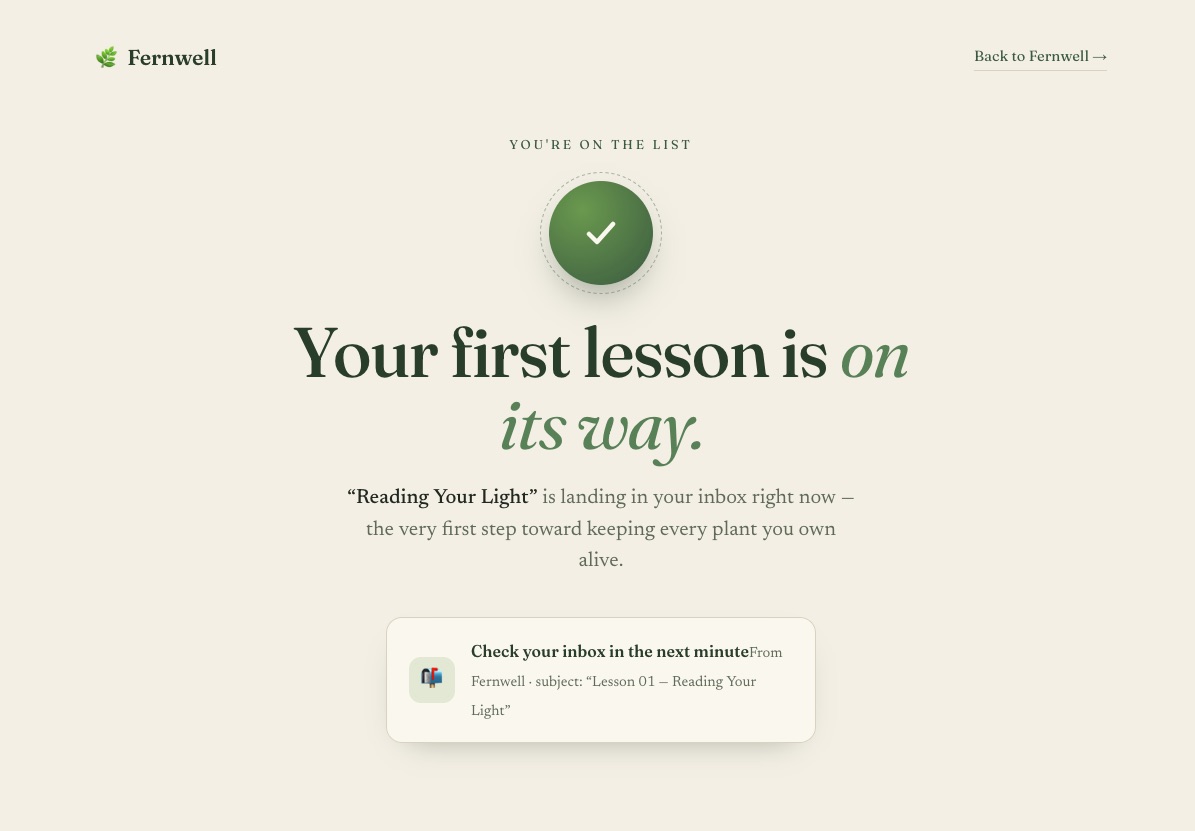
Here’s an example page that was created this way without any additional prompting:
|
Original Page |
Thank You Page |
|---|---|

|
|
Using the Drag and Drop Landing Page Editor
-
Access the "Landing Pages" tab by clicking the "Pages & Forms" dropdown. You can edit an existing landing page or create a new landing page. To create a new page, click the "Create a Landing Page" button.

-
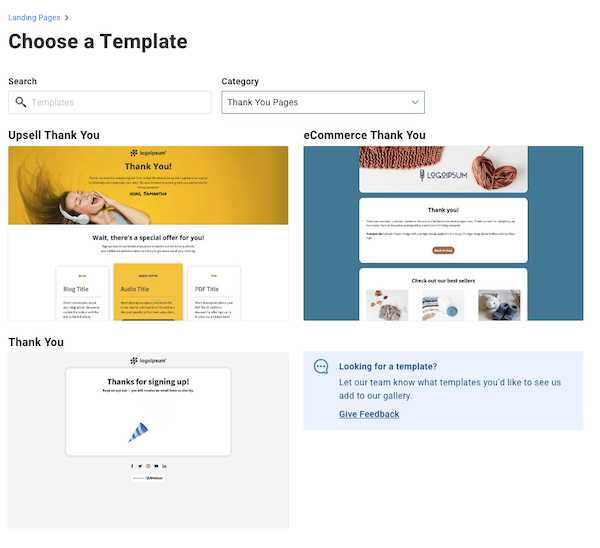
There are a lot of different templates that you can choose from, or you can build your page from scratch. There are also templates specifically the thank you pages. These templates contain placeholder text that you can edit. Click the template you would like to use.
-
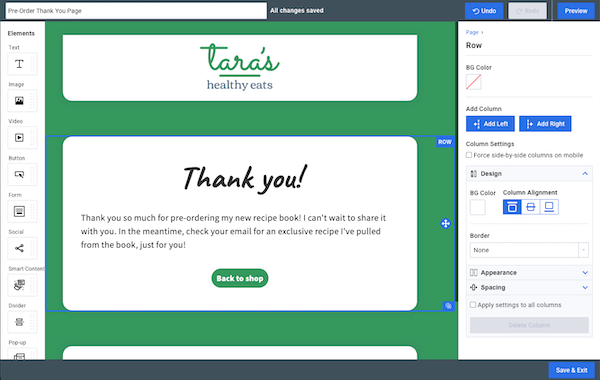
Edit the page using the drag and drop elements. Once complete, click "Save & Exit" in the bottom-right of the editor.
-
Next, click the publish icon to make the page live.

-
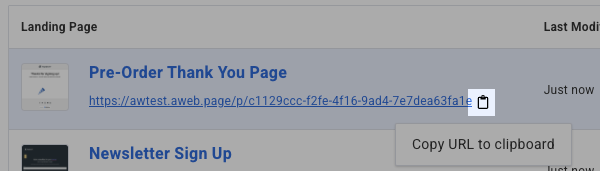
After you publish the page, click the clipboard icon next to the URL to copy it.
-
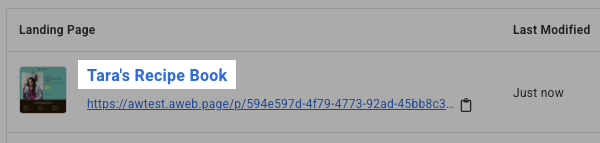
Then, click the name of the landing page that contains your sign up form.
-
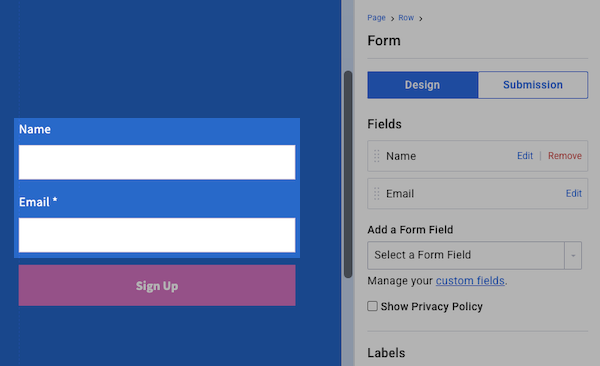
Click on the name or email field of the sign up form to pull up the "Form" settings on the right-hand side of the landing page builder.
-
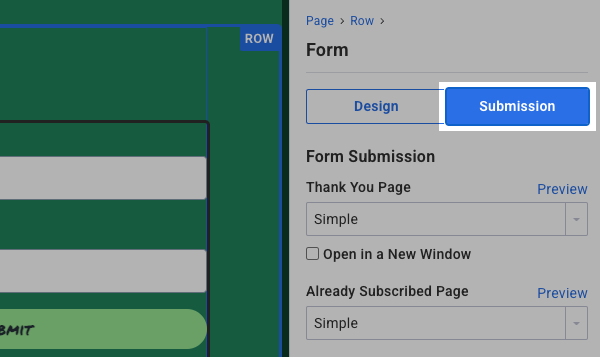
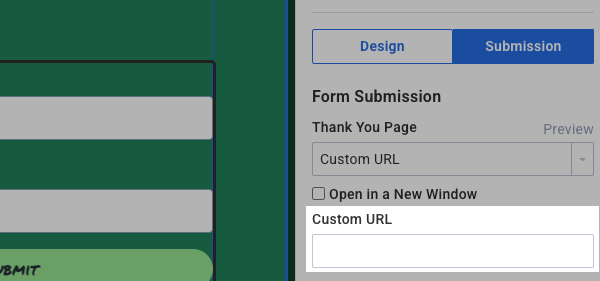
Next, click the "Submission" tab.
-
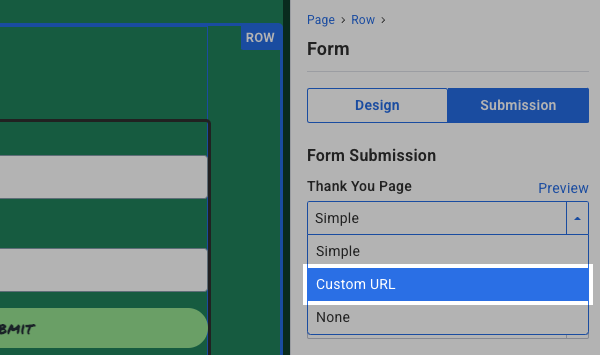
Select "Custom URL" from the "Thank You Page" drop-down.
-
Paste the URL from your thank you page into the "Custom URL" box.
And that's it! When someone visits your landing page in the future and signs up to your list, they will be redirected to the custom thank you page. Beyond your sign up forms, you could also use the thank you page URL for your click automations in campaign messages.