
After you submit an import it may go through a manual review process on our end. The review is done in order to check the quality of the subscriber list that is submitted. Checking the status of your import is easy and is done right from within your account!
All you need to do is hover your mouse over the "Subscribers" tab and click on "Import History" from the drop-down menu. You will then be taken to a page where you can see all of your recently submitted imports.
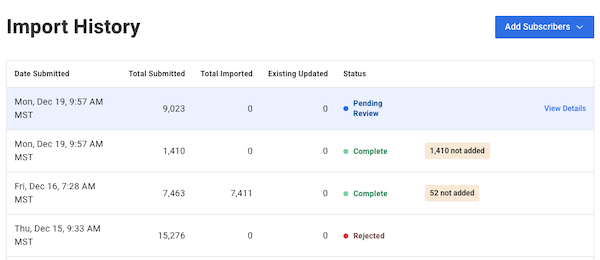
The status column on this page will tell you what the status of your import is. If the import is still being reviewed by our import specialists then the "Status" column will say "Pending Review" next to the import that's been submitted.

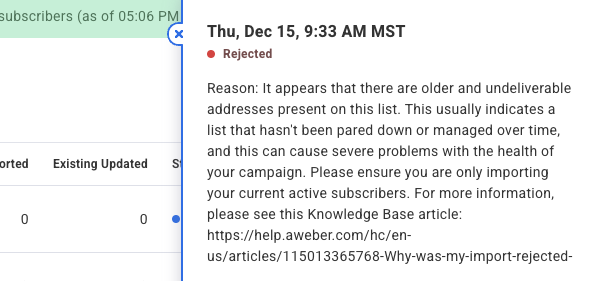
If the import is rejected then the "Status" column will read as "Rejected" and you will need to click "View Details" upon hovering over the import to see an explanation as to why the import was rejected. Below, you can see an example of a message that would appear if an import is rejected for having older and undeliverable addresses.
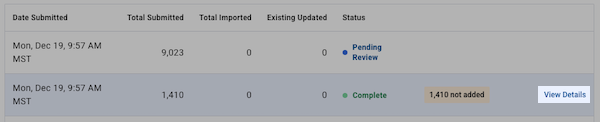
If the import is approved, but some subscribers were not added you will see a "View Details" link upon hovering over the row with the import. Click on this link to see detailed information as to why those subscribers were not added.
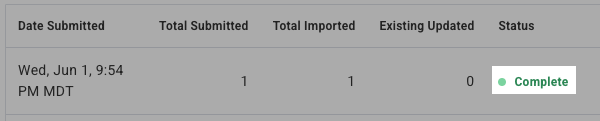
If the import is approved the "Status" column will have "Complete" written in it.
Frequently Asked Questions
Is There A Limit To The Amount Of Subscribers I Can Import?
There is no limit to the number of subscribers that you can import. However, our Import Team may request that a is sent to a sample portion of your subscribers if large numbers of subscribers are being imported. Additionally, pricing will automatically adjust depending on the number of subscribers in your AWeber account.
Why does "View Details" show contacts not added with no email addresses listed?
If the "View Details" section of your import history shows contacts that were not added but does not list any email addresses, this is usually caused by an issue with your file formatting or field mapping, not the email addresses themselves.
Common causes include:
-
Columns in your spreadsheet are missing headers, making it difficult to map them correctly in Step 2 of the import process.
-
A column was mapped to the wrong subscriber field (for example, mapping an email column to "First Name" or vice versa).
-
A non-email field contains a value that is too long or contains unsupported characters.
When this occurs, it’s best to re-import your file after reviewing it and double-checking the following:
-
Open your spreadsheet and confirm that every column has a clear, descriptive header in the first row.
-
During import, carefully review the field mapping in Step 2. Confirm that the column containing email addresses is mapped to "Email" and that all other columns are mapped to the correct subscriber fields.
-
Check any custom field columns for values that are unusually long or contain special characters.
-
If the issue persists after re-importing, contact AWeber support and include your import file so we can help identify the problem.
Note: Blank rows in your spreadsheet are skipped automatically and will not appear in your "not added" count.