
When you disable confirmed opt in for Sign Up Forms, subscribers who sign up via an AWeber Sign Up Form on your site will not receive a confirmation message.
Subscribers added by other means may still receive the confirmation message. By default, subscribers added via an AWeber Sign Up Form, manually added to your list, or added via the API will need to confirm.
Note: You can disable the confirmation process off for Sign Up Forms and for . For some integrations, confirmed opt-in through the API is disabled by default. We do have a list of integrations that are single opt-in by default. For other third-party applications, you can disable the confirmation message setting within your List Settings on AWeber Pro.
If a subscriber is signing up to your mailing list via an AWeber form, it is possible that a normal sign up form submission from your site may not go through. Usually, this is the result of either a browser error, or a security setting on your website.
No Add URL Is Passed
When a subscriber signs up to your mailing list several pieces of information are passed along to us behind the scenes. One of those pieces of information is the Add URL. The Add URL is the URL of the website that the subscriber filled out your sign up form at.
We must be able to capture this information in order to generate a valid electronic audit trail for your subscribers so we know where they are coming from. Without that audit trail to establish the validity of a subscriber, you run the risk of hurting your deliverability to the various email service providers. The audit trail is needed to protect your email campaign in case one of your subscribers ever marks your messages as SPAM and will give us the ability to provide proof to those providers that the subscribers did indeed subscribe themselves to your mailing list.
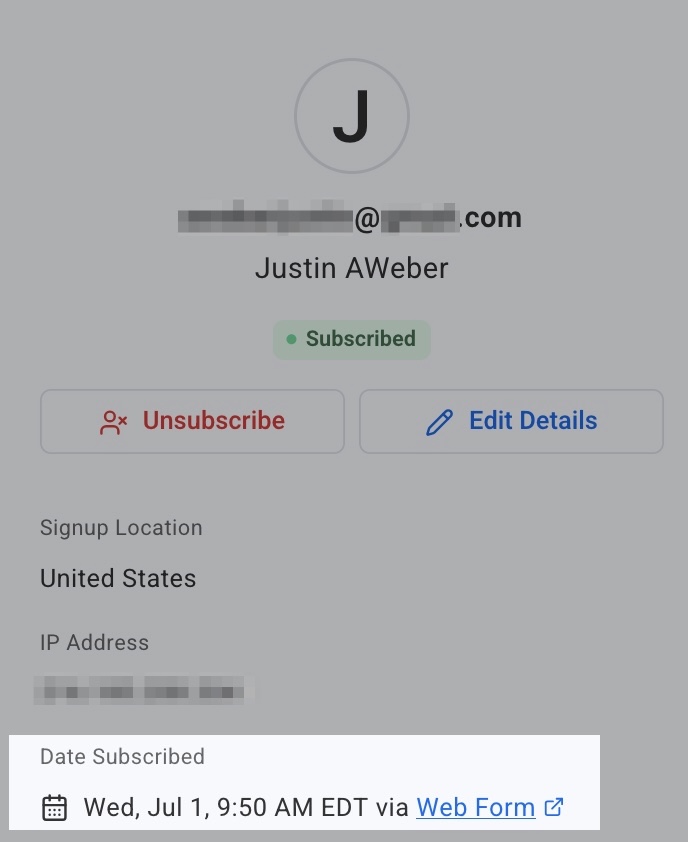
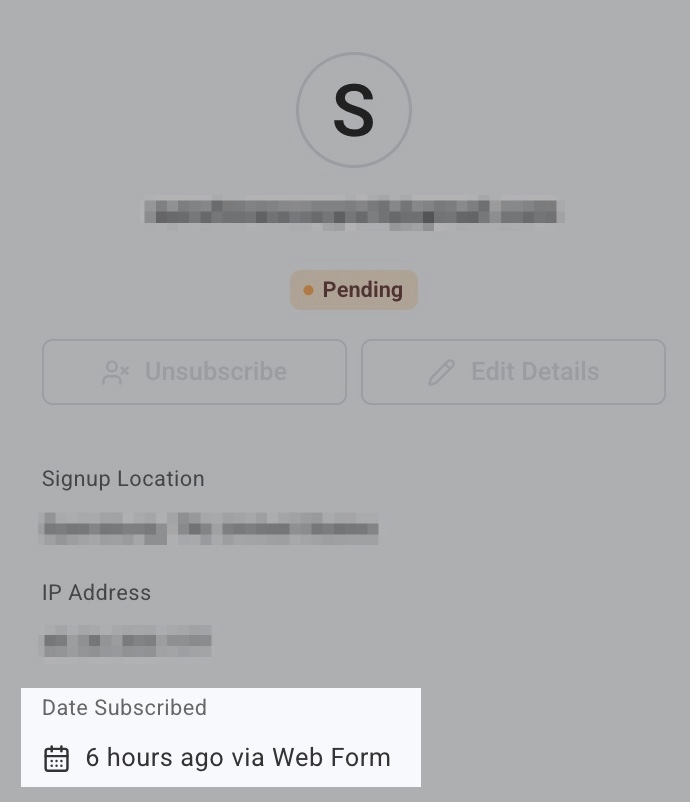
Below are examples of when an Add URL are successfully and unsuccessfully submitted with the subscriber’s information within their subscriber information.
|
Add URL Passed |
No Add URL Passed |
|---|---|
|
|
Here are some examples of what may cause the Add URL to not be passed, and how to resolve each one:
|
Cause |
What's happening |
Solution |
|---|---|---|
|
Hosted or iframe form |
The subscriber signed up through a form placed on your site with the "Have AWeber Host My Form" option. This often happens when the form is embedded using an iframe, or placed on a platform like Facebook. |
Replace the iframe or hosted embed with AWeber's direct sign up form code instead. |
|
Browser security settings |
The subscriber's browser has security or privacy settings that may interfere with how their information is submitted to us. This happens on the subscriber's device, not on your form. |
There is no fix available on your end since this is controlled by the subscriber's browser, not your form's setup. |
|
Script-based submission |
Your form is submitting the subscriber's information via a script rather than a standard form post. |
If you're using a third-party or custom-coded form, make sure it's set up to submit directly to AWeber without the form's info getting stripped or redirected along the way, this is what allows the Add URL to pass through correctly. If you can't confirm the third-party form is coded correctly, replace it with AWeber's direct sign up form code instead. |
The easiest way to find out which of these applies to your form is to go to the page the subscriber signed up from and try it yourself. If you can't reproduce the problem, it's likely an issue on the subscriber's end with their browser, rather than something you can fix on your form.
Note: Subscribers can still confirm their subscription even if their browser is blocking the Add URL. Testing your form and confirming the cause does not change the status of subscribers already marked "Pending" — they must click the confirmation link themselves to be marked "Subscribed." To help improve your opt-in confirmation rates, you can customize your confirmed opt-in message.
Other Situations That May Cause Confirmation To Be Sent
Besides the Add URL not being passed, there are other reasons why the confirmation message may go out when you have it disabled.
-
The subscribers name that they submit is 4 characters or less. This type of formatting is commonly associated with SPAM email addresses.
-
The subscribers email address that they submit is 4 characters or less before the @. This type of formatting is commonly associated with SPAM email addresses.
-
The subscribers email address does not contain any vowels. This type of formatting is commonly associated with SPAM email addresses.
-
Your form is submitting the subscribers information via our API. Even if it looks like a regular sign up form, if it is submitting the information to us through our API the confirmation message will still go out. Contact Customer Solutions for more information.
-
You are receiving multiple submissions from the same IP address. When our system detects multiple subscribers being added from the same IP address it will send out confirmation in order to generate the valid electronic audit trail for those submissions. The IP address helps us to determine if the submission is unique or not.
-
Your subscriber has clicked the submit button too many times. When a subscriber clicks the submit button too many times in a row the system will detect that as multiple submissions from the same IP address and send out the confirmation message.
-
Your subscriber tries signing up on your form using a role based email address.
-
You manually added a subscriber to your list whose email address is a role based email address.
In any case, make sure that you've customized your confirmation message to make sure that anyone who IS sent confirmation will be able to confirm with confidence.