
In this article, we will review the necessary steps to segment your subscribers based on whether or not they have a specific tag. If you have not yet applied a tag to these subscribers, it can be applied in bulk from the Subscribers page.
A segment is a collection of subscribers that you can create based off of specific search criteria. One search criteria that can be used to create a segment is tags. With segmenting you can send a broadcast only to the subscribers who have a specific tag. You can also create a segment that will exclude the subscribers with that tag so that they do not receive the broadcast.
Note: Saving and sending to custom segments is not accessible on the AWeber Free plan. Upgrade your account to unlock this feature and many more by clicking Upgrade within your AWeber account, or by contacting our Customer Solutions team.
Step By Step Instructions
-
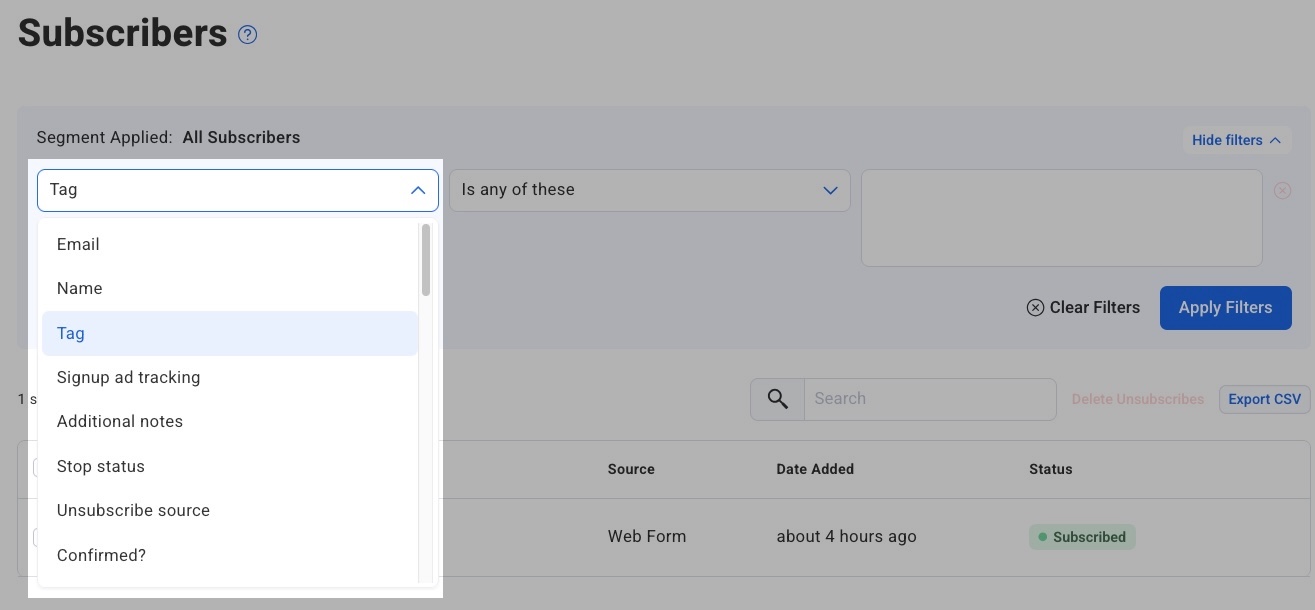
Go to the "Subscribers" page of your list and choose "Tag" from the filter menu at the top of the page.
-
In the second dropdown, select “Is not any of these.”
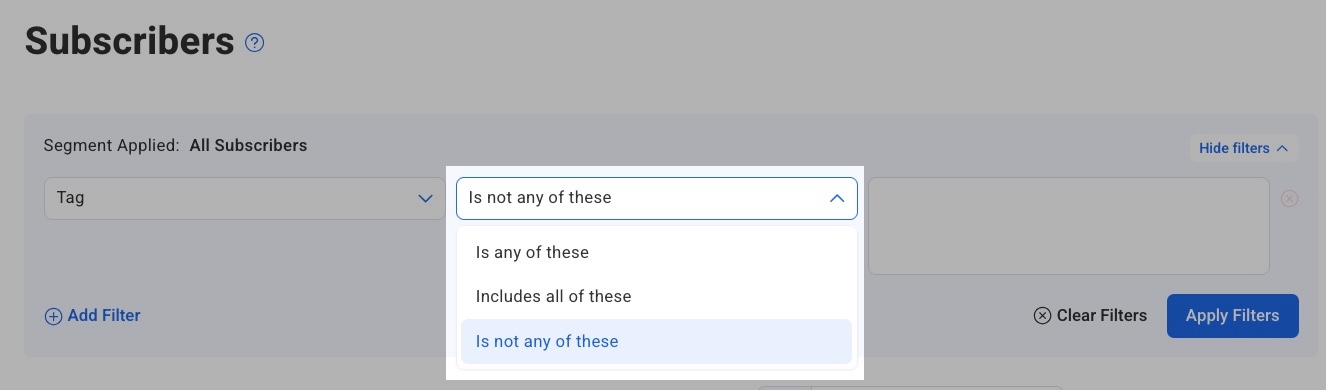
Note: you can select “Is any of these” or Includes all of these” if you plan to send to subscribers with specific tag(s). You can also click “Add filter” below the first dropdown menu to include additional search criteria.
-
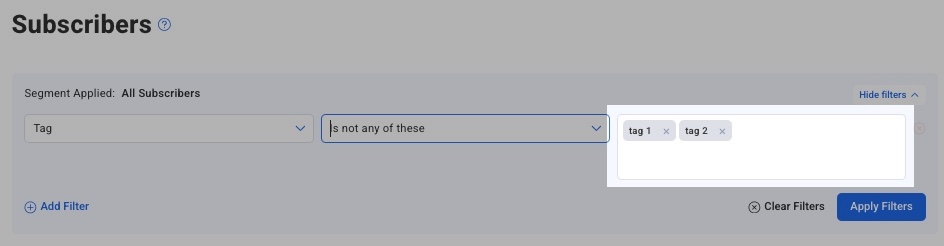
Enter the tag you would like to search for in the input field and search.
-
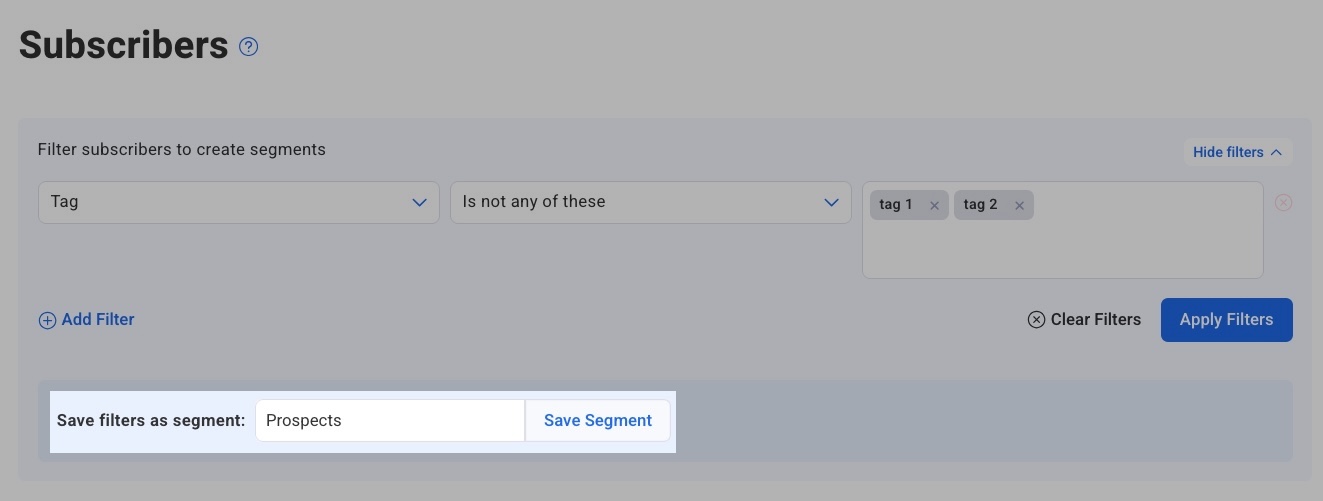
Name and save your segment by clicking the "Save" button.
-
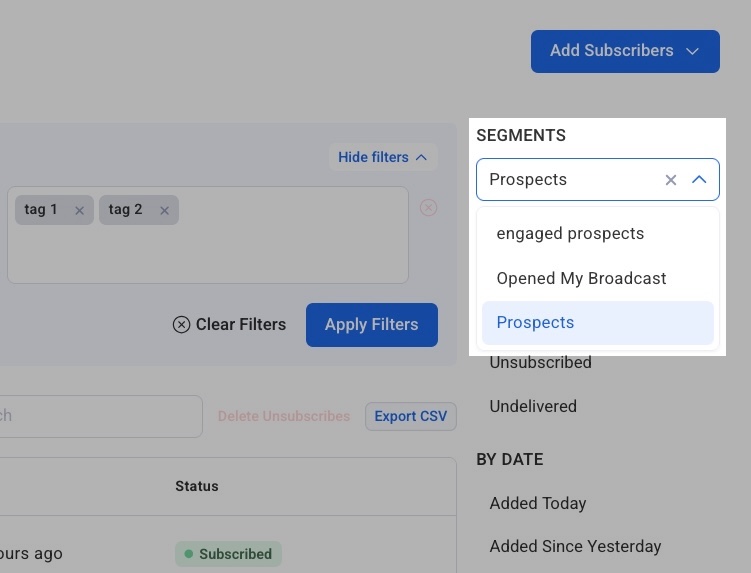
Your segment will be saved on the left-hand side of the page under the "By Segment" section.
Congratulations! You have just successfully created a segment based on a tag. You can now use that segment to send a message to your subscribers.