
Want more of your emails to reach the inbox? Safelisting can help! In this article, we will review how to safelist an email address using different inbox providers.
Safelisting is a term used in the industry and means asking subscribers to add your email address to their address books. Some companies have also historically called this a whitelist, but the more neutral safelist or allowlist term is preferred. Having your messages reach your subscribers inbox is very important to your campaign. By having your subscribers safelist you in their own email accounts, you can ensure that your messages will be more likely to reach their inbox.
Below are examples of some of the more popular clients that your subscribers might be using to receive emails from. Under each section will display the steps on how to safelist a sender's email address. Feel free to direct them to this article for the specifics on how they could process this in their own email client.
Gmail
Yahoo
AOL
Outlook
Apple Mail
Verizon
Comcast
Cox.net
Road Runner
AT&T WebMail
EarthLink
Thunderbird
Windstream
Norton AntiSpam
McAfee
Mail.com
GMX
Gmail
Log into your account and open up the email in your inbox. Hover over the sender's name and a window will pop up. Select the "Add to contacts" icon to save the sender to your Contacts list.
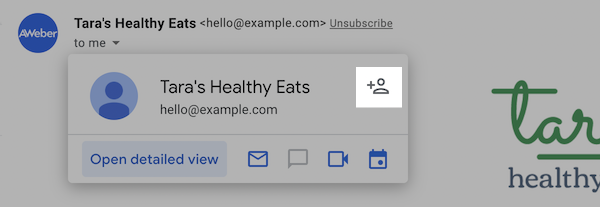
You can also safelist in Gmail before opening the email. To do so, hover over the sender's name next to the subject line in the inbox. Click "More" in the pop-up box. Select "Add to senders" to save to your Contacts list.
Yahoo!
Log into your Yahoo!mail account and click the "Contacts" icon.
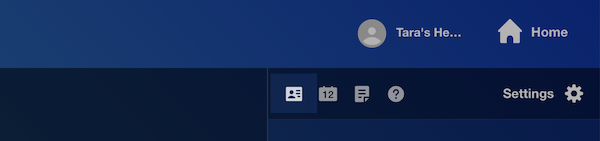
At the bottom of the contacts sidebar menu, click "Add a new contact."

Enter a name for your new contact and enter the sender's email address in the "Email" text field. Add any additional information you would like.
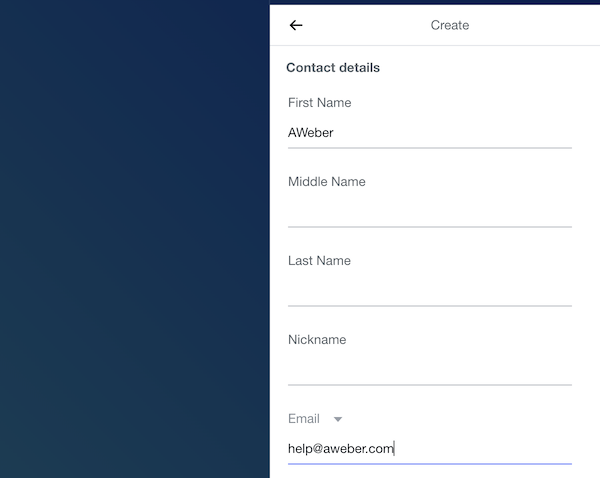
Click "Save" at the bottom of the sidebar menu to save your new contact.

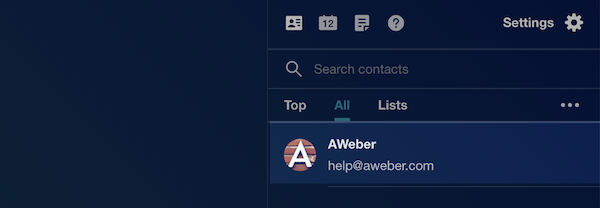
The contact will now appear under your contact list.
AOL
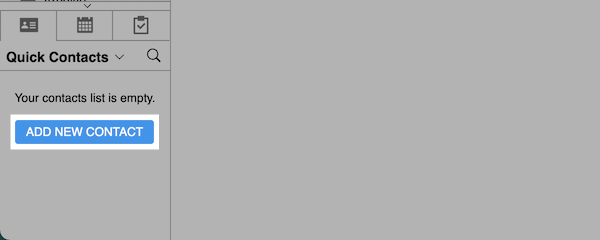
In the lower left hand corner of your account, click on the "Contacts" icon.

Click the "Add New Contact" button.
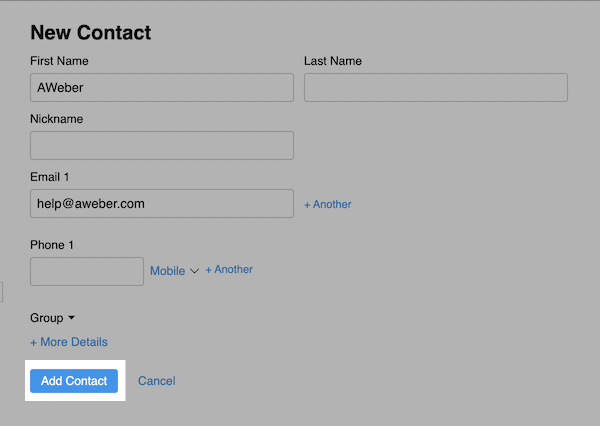
Enter the name and sender's email address, along with any other information you would like to include. Then, click "Add Contact" to save your new contact.
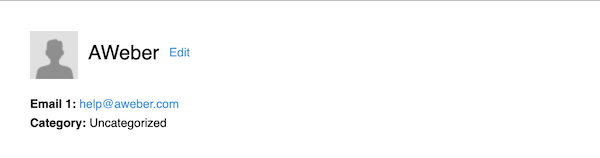
Your new contact will display.
Outlook
There are two options for safelisting a sender in Outlook. The first is adding a sender as a contact. Click the "People" icon.
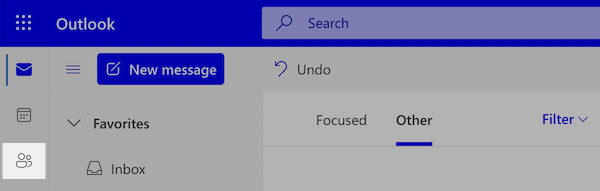
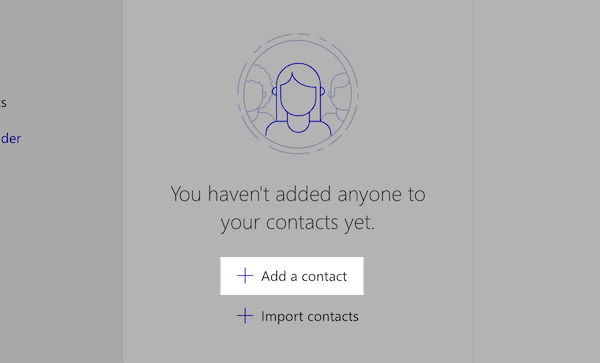
Click "Add a contact".
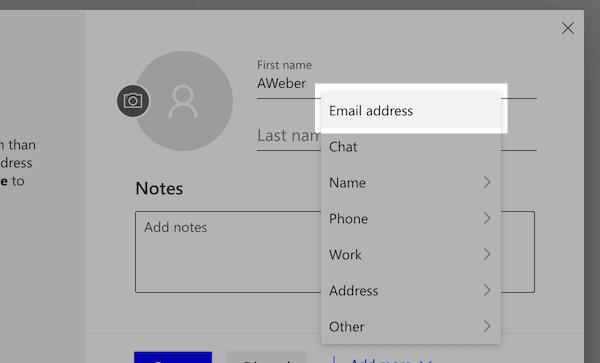
Enter the sender's name and email address by clicking the option to "Add more".
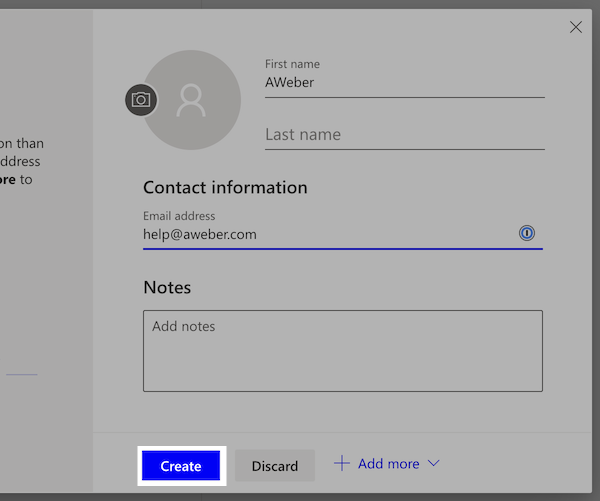
When the desired contact information is added, click "Create".
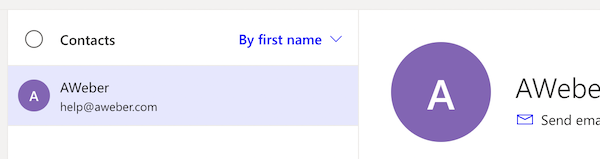
You will now be able to view your new contact.
You can also utilize the Junk Email settings to safelist a sender. First, click the "Settings" icon.

At the bottom of the Settings menu, click "View all Outlook settings".

Click the "Junk email" tab.
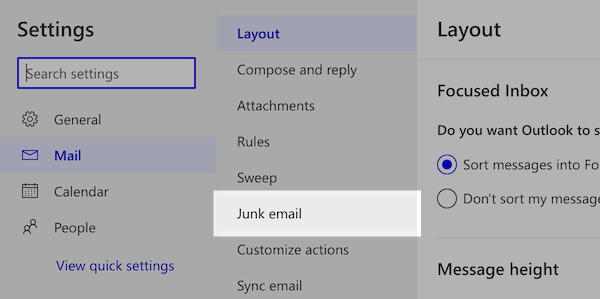
Under the Safe senders and domains section, click "Add".
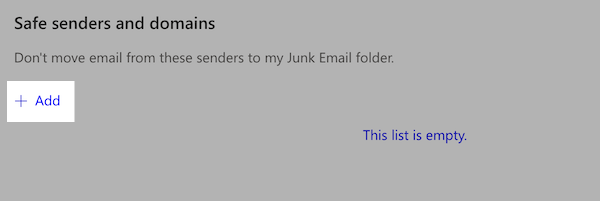
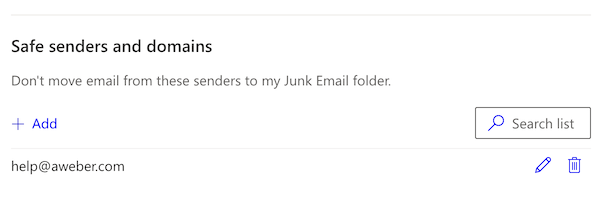
Enter the sender's email address you would like to safelist and hit enter.
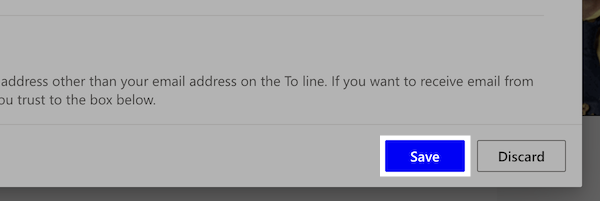
Last, click "Save," and the sender will now be safelisted in your Outlook inbox!
Apple Mail
Select "Mail" and "Settings" from the top menu.
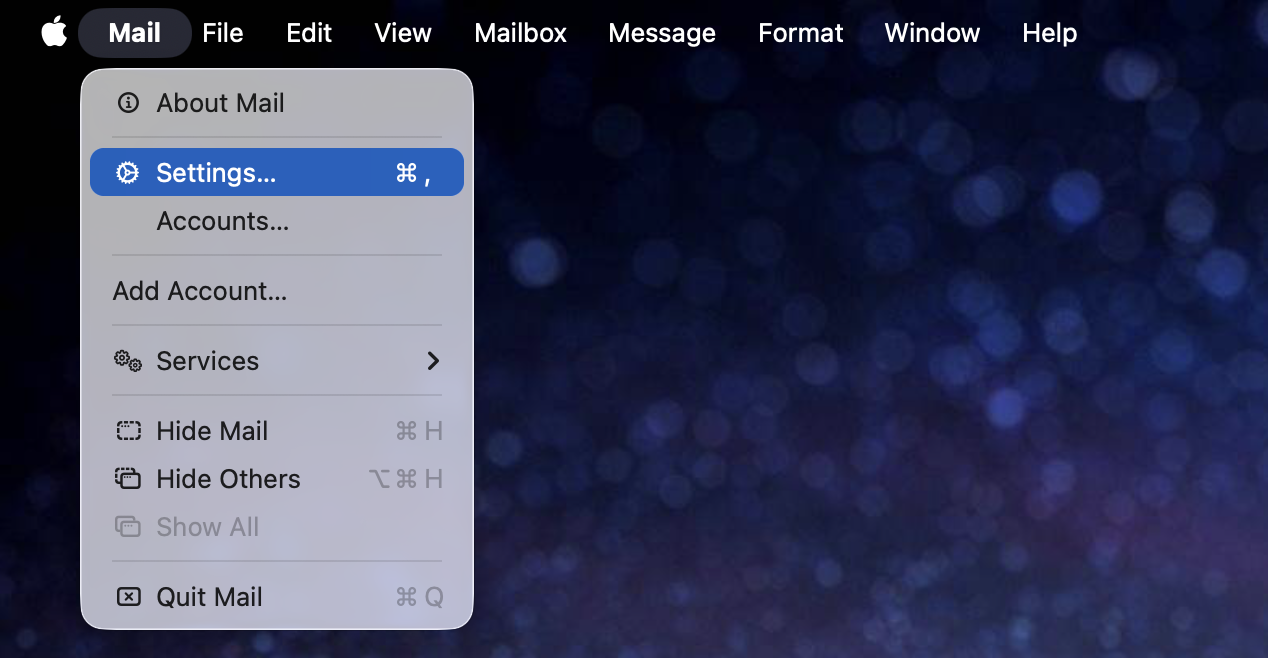
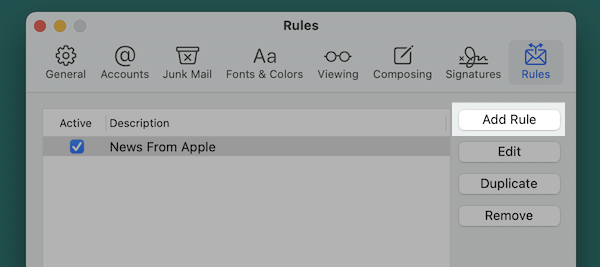
In the "Settings" window, click the "Rules" icon. Then, click the "Add Rule" button.
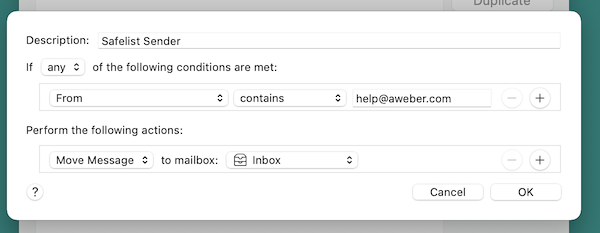
In the "Rules" window, type a name for your rule in the "Description" field. Use the following settings: “If any of the following conditions are met: From Contains.” Type the sender’s email address in the text field beside “Contains.” Select “Move Message” and “Inbox” from the drop-down menus. Click “Ok” to save the rule.
Verizon
-
Open your email.
-
Click "Options".
-
Click "Block Senders".
-
Locate the "Safe List".
-
Enter your contact's domain.
-
Click "OK".
Comcast
-
Click "Address Book".
-
Click "New" and click "New Contact".
-
Add the sender's email address.
-
Click "Save".
Cox.net
-
Open your email.
-
Click "Preferences".
-
Under "General Email Preferences", click "Blocked Senders".
-
Type in the sender's email address in the "Exceptions List".
-
Click "Add".
-
Click "Save".
Road Runner
-
Click your "Junk Mail" folder.
-
Select the email that includes the email address you would like to add as a safe sender.
-
Click "Mark as Not Spam".
AT&T WebMail
-
Select "Options".
-
Select "Filters".
-
Click "Add Filter".
-
In the top row labeled From Header, select "contains" from the drop down menu.
-
Enter the sender's email address.
-
Move down to the bottom where there is the option "Move the message to". Select "Inbox" from the drop down menu.
-
Select the "Add Filter" button again.
EarthLink
-
Click "Add"
-
Enter your sender's domain i.e. example.com.
-
Click "Save".
Thunderbird
-
Check if your sender's email is in your "Junk" folder. Then, right click on the email and select "Mark As Not Junk".
-
Click "Address Book".
-
Make sure that the "Personal Address Book" is highlighted.
-
Click "New Card", the "New Card" window will display.
-
Under the "Contact" tab, copy your sender's "From" address and paste it into the email dialog box.
-
Click "Ok".
Windstream
-
Click the "Settings" tab.
-
Click "Messages".
-
Click "Allow and Block Messages".
-
Select "Advanced Block Senders".
-
In the "Allowed Senders and Domains" area, type the sender's email address you want to allow.
-
Click "Ok".
Norton AntiSpam
-
Start Norton AntiSpam.
-
Select "Status & Settings" tab.
-
Select "Configure" button.
-
Select "Allowed List" tab.
-
Select "Add".
-
Enter the sender's email address.
-
Select "Ok".
McAfee
-
Click the "Allow/Deny" menu option in the Control Console.
-
Enter the sender's email address in the "Add Entrys" field in the "Allow List".
-
Click "Save".
Mail.com
-
Open the email.
-
Click the "Plus" symbol on the sender's email address.
-
Add the first/last name of the sender.
-
Click "Ok".
GMX
-
Open the email.
-
Click the "Plus" symbol on the sender's email address.
-
Add the first/last name of the sender.
-
Click "Ok".