
We all make mistakes. Fortunately, if you don't catch the typo in your URL addresses you enter for your links, an automatic link checker will. In this article, we will review how we check to make sure links added to your message point your subscribers to a destination.
How are links automatically checked?
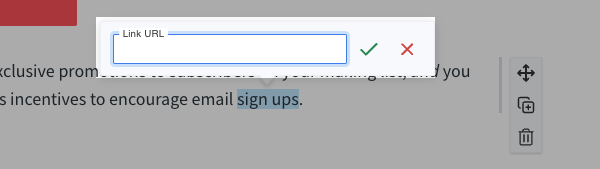
When you enter in a URL into your message, you will highlight the word or phrase you want to be hyperlinked. Once you have the word or phrase highlighted and the hyperlink button is clicked, a window will pop up for you to enter the URL.
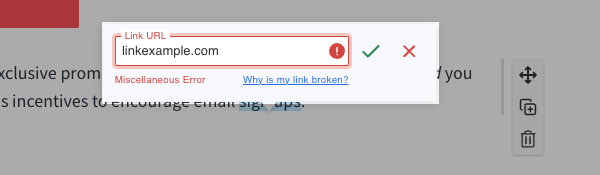
If you were to enter in an invalid URL, the message editor will check the link and show an error message in the edit link window. If you see this, you will need to make the necessary changes to the URL.
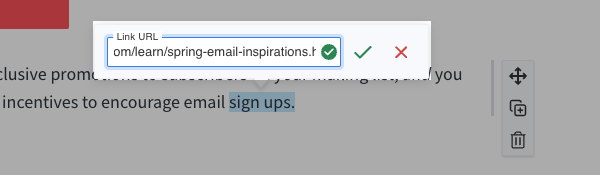
When you successfully enter a valid URL into the edit link window, you will be prompted with a green checkbox in the link window.
What if I receive an error for a URL, but I know the link is valid?
If you receive an error indication (including a "miscellaneous error" message), the issue could be with the validation of that webpage.
You can still save the hyperlink even if this error appears. To verify your link works:
-
Click the green checkmark to save the hyperlink
-
Click "Preview and Test" in the top right of the message editor
-
Click the hyperlink within the message preview
-
Confirm the link navigates to the correct destination
If the link works in the preview, you can ignore the error message and proceed with your broadcast.
Troubleshooting validation errors
If a website you're linking to blocks AWeber's link validator (such as sites using security services like Cloudflare), you may see an error message. If you wish to resolve this, you'll need to allowlist the AWeber-Link-Proxy/1.52.3 user agent in your website's security settings.
Note: even if validation fails, you can still save and use the hyperlink as long as you confirm that the entered link works properly when you enter it in your browser.