
If you need to restore an earlier version of the message that you are working on - either because you made a change that you didn't like and saved it, or because you forgot to save some work you did - you can use AWeber's Drafts feature to easily save you a lot of time and lost work. Up to the previous 10 autosaved drafts of your message will be saved. Additionally, a draft will automatically be saved every 2 minutes you're actively working with the message.
Restoring a Draft
-
Open the editor for the message you’re working with.
-
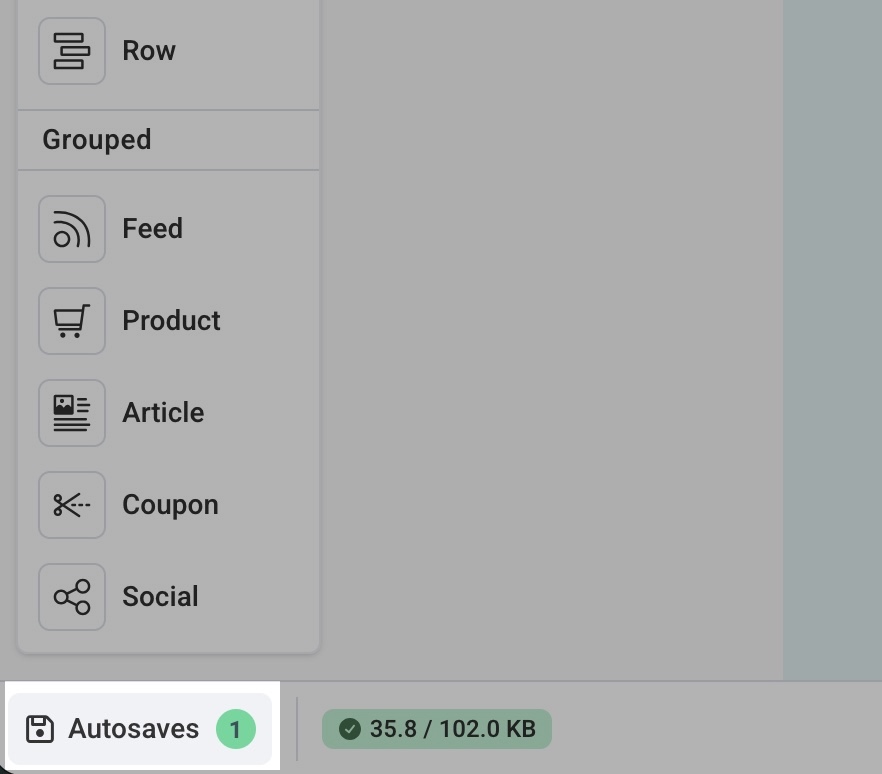
Click "Autosaves" from the bottom left of the message editor.
-
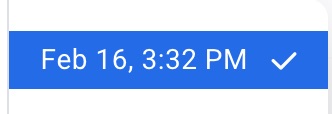
From the Drafts menu, click on the date/time of the previous draft you would like to restore for your message. A preview of that message version will display on the left.
-
After selecting the correct autosaved draft, click “restore autosave” at the bottom right of the menu to restore that draft.
What if I have issues designing my messages?

AWeber offers hundreds of templates you’re welcome to use! If you would ever find yourself wanting to modify an existing template or would like a custom template built for you to reflect your branding, our Template Team would be happy to modify existing templates or design a custom template for you!