
Gmail clips messages over 102 KB (102,000 bytes). If you send a message and the HTML size exceeds 102 KB, your Gmail subscribers will see the first 102 KB of content, then a "Message clipped" notice at the bottom.
When the subscriber clicks to "View entire message", your message will display in a new window.
For clipping, the size of the email is based on the email's HTML MIME type code. Images pulled from external sources, such as your image gallery, do not affect the size of the email for clipping purposes. The plain text MIME type element of a message does not count towards the clipping allowance.
How AWeber helps you avoid clipping
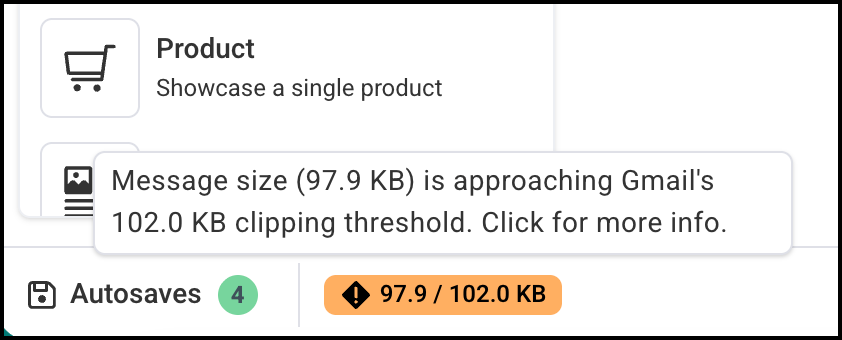
AWeber's message editor keeps an eye on your message size as you compose, so you'll know if you're getting close to Gmail's limit before you ever hit "Send."
A size indicator in the editor footer shows your current message size in real time. If your message grows large enough to risk clipping, you'll see a warning alert so you can trim it down. Most messages won't come anywhere near this limit; it typically only applies to very long or heavily formatted emails.
What the alerts mean:
-
Approaching the limit (around 95 KB): A warning lets you know you're getting close. This is a good time to review your message for anything that could be trimmed.
-
At or over the limit (around 102 KB): A stronger alert lets you know your message is at risk of being clipped by Gmail. We recommend reducing the message size before sending.
Checking sent messages for clipping
If you've already sent a message, you can check whether it was large enough to be clipped by Gmail. A clipping indicator appears near your open and click stats for that message.
If a message was likely clipped, your open and click counts for Gmail subscribers may be lower than expected. This is because the tracking elements at the end of the message can be hidden when Gmail clips the content.

Tips for avoiding clipped messages in Gmail
-
Keep your messages concise. Highlight the key points in the message, then direct your audience back to your website to read more. This is easily done by adding hyperlinks to your messages.
-
Avoid copying and pasting content from a website or word processing program. When copying your content from a website or word processor, you are copying the text styles as well, increasing the message size. We recommend creating your message directly in AWeber's message editor, or you can paste your content into an unformatted, plain text editor such as Edit Pad.
-
Remove unnecessary styles. Using different fonts and style changes in a single email will increase the size of your message.
-
Remove unnecessary links. Every website link in the message adds to the message size. Having dozens of links rarely helps increase user click-through rates. Condense links to only what's necessary. A half dozen social media icons in the footer of a message can easily add 3–5 KB of size alone.
-
Break your message up into more than one message. If your message is covering multiple topics, consider breaking it into two or three messages. Keeping your content specific to one or a few items can also help increase audience engagement.