
Adding a sign up form to your Squarespace site is easy. By following the instructions below you will be able to add a sign up form that you create within your AWeber account to your Squarespace site.
By adding a form to your Squarespace site you give yourself the ability to re-engage subscribers that visit your site. If they choose to fill out your sign up form you can then follow up by sending them newsletters or autoresponder messages.
Step By Step Instructions
-
After creating a sign up form and navigating to the Publish step of the form builder, copy the provided Raw HTML Version form code.
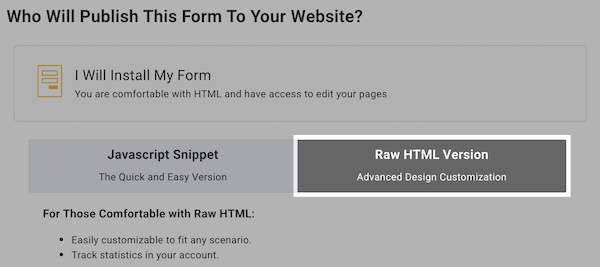
Save this form code for use later.
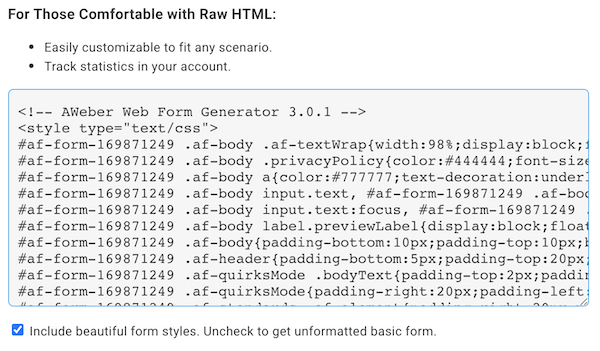
-
Once you have logged into your Squarespace account, select the "Edit" button for the page you'd like to have your form displayed on.

-
On the next page you will want to navigate to the part of the page that you want to insert your form and click plus symbol that appears in that part of the page.

-
In the menu that appears, select the "Code" element.
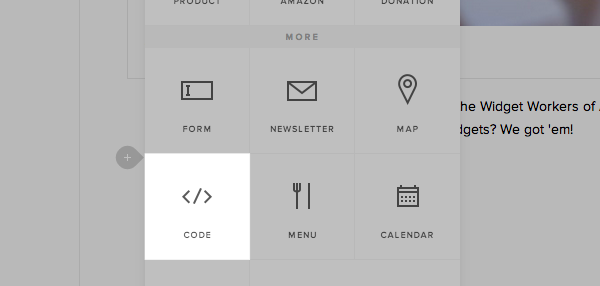
-
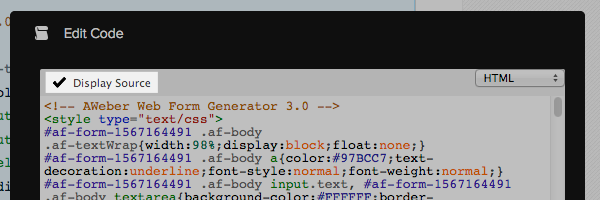
In the box that appears, paste the form code previously copied from your AWeber account.
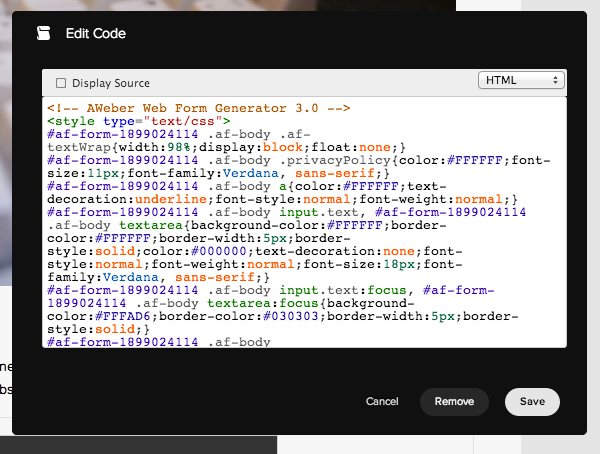
Note: If there is any code pre-populated in that box you will want to make sure you delete that code before pasting in the Raw HTML code for your form.
-
You will need to ensure that the "Display Source" is not checked. You can click on it to uncheck that option if it is not already unchecked
-
You will now see the form populated to your Squarespace site. If you want to move the form to another part of the page, click and drag the form to the part of page you want it on.