
Facebook Lead Ads is a service through Facebook where you can seamlessly collect subscriber information via a Lead Ad form. Facebook Lead Ads allow you to rely less on web-based sign up forms, and easily grow your subscriber mailing list. When running a Lead Ad, Facebook will show the ad to subscribers likely to be interested in your business, based on the audiences you choose, so they can easily request to receive more information from you.
All submitted subscriber information from the Lead Ad form will be sent to you after the subscriber consents by tapping the "submit" button. With Facebook's policy, users are not allowed to share or sell subscriber information to anyone.
Need to set up your AWeber account first? Sign up today!
Step By Step Instructions
-
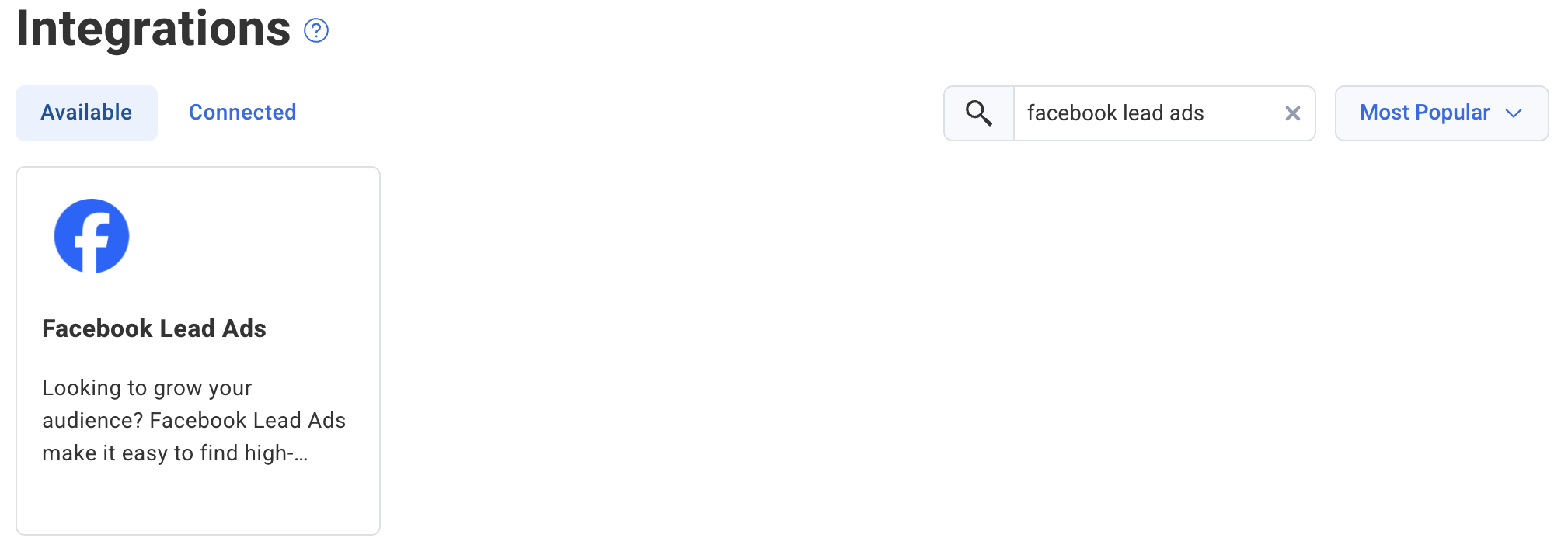
First, from inside of your Account Integrations page, select Facebook Lead Ads.
-
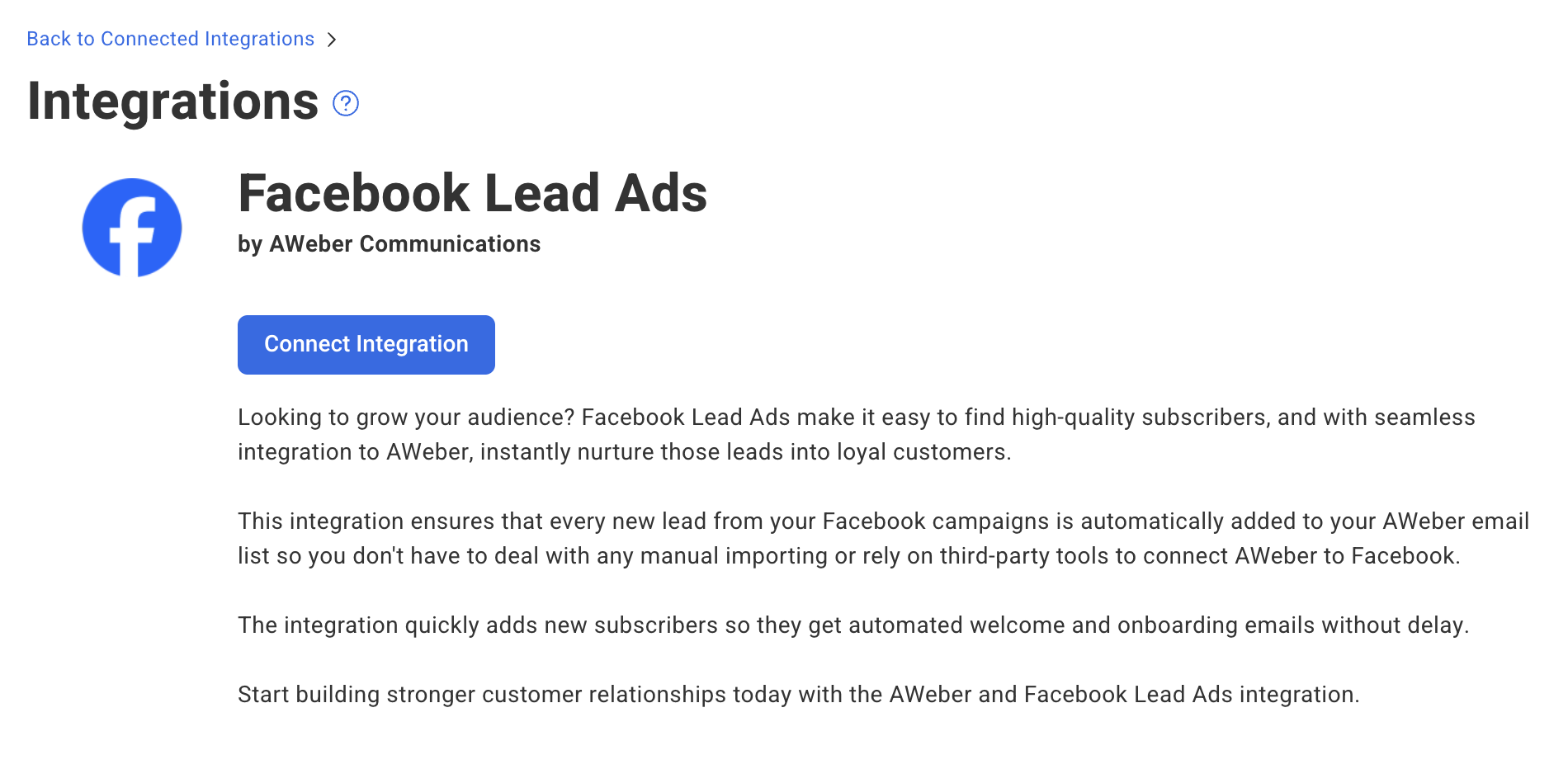
Then, click the "Connect Integration" button.
-
You will be redirected to Facebook and asked to select your account, and verify the page(s) you want to have this connected with.
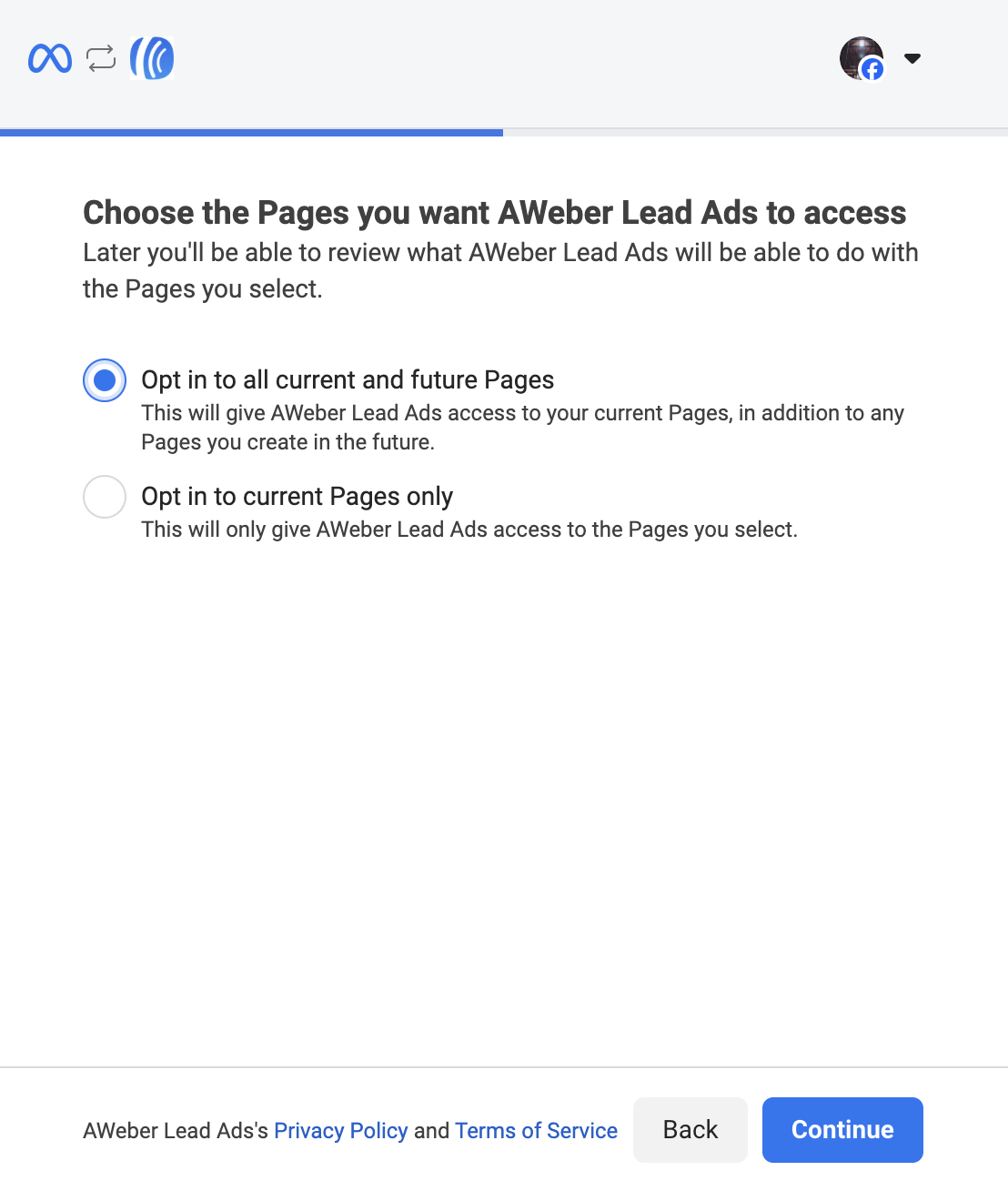
Once selected, click "Continue".
-
You can choose the specific business(es) associated with those pages to connect this to, where you plan on running ads from.
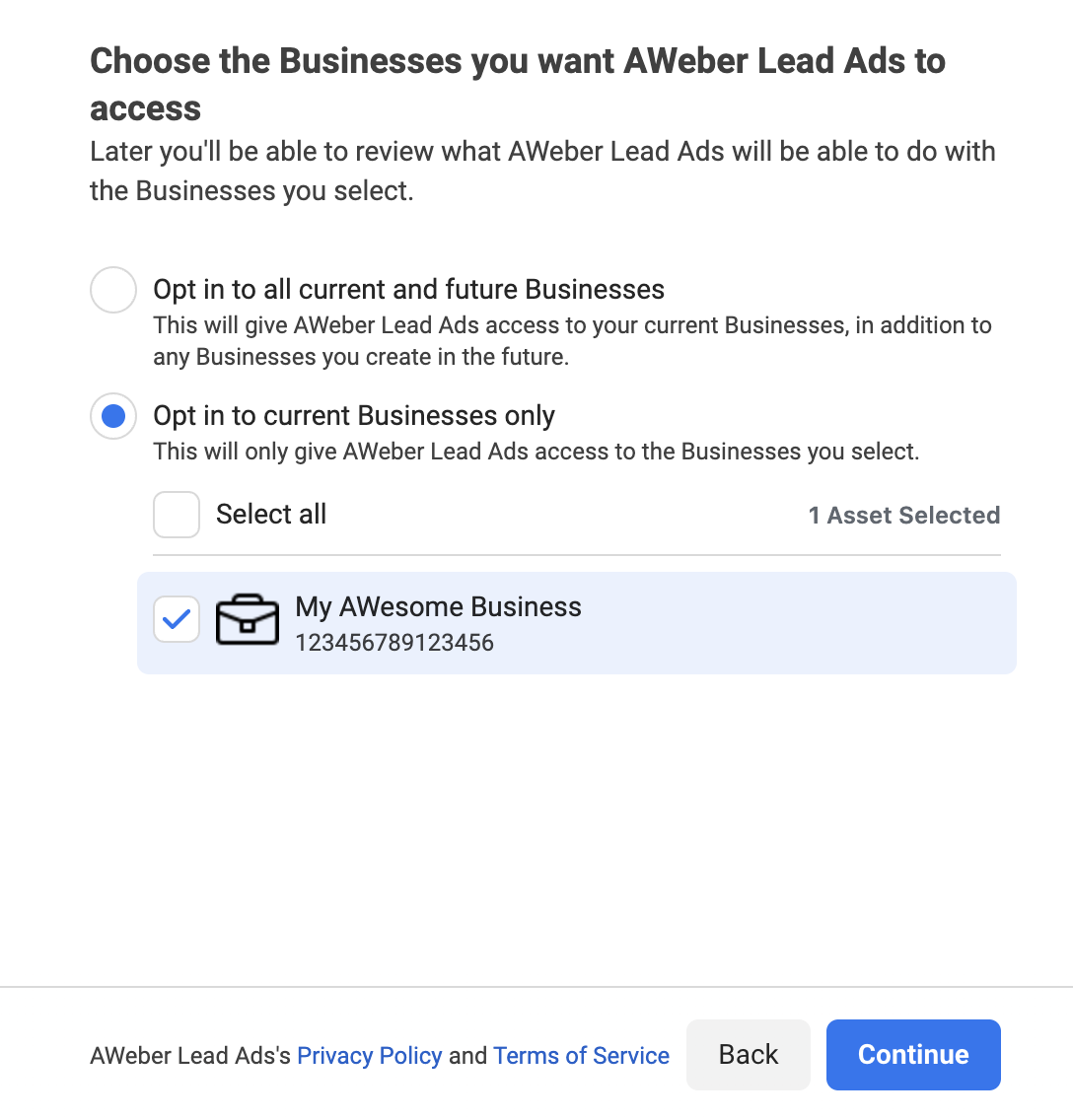
Once you have made your selections, click "Continue".
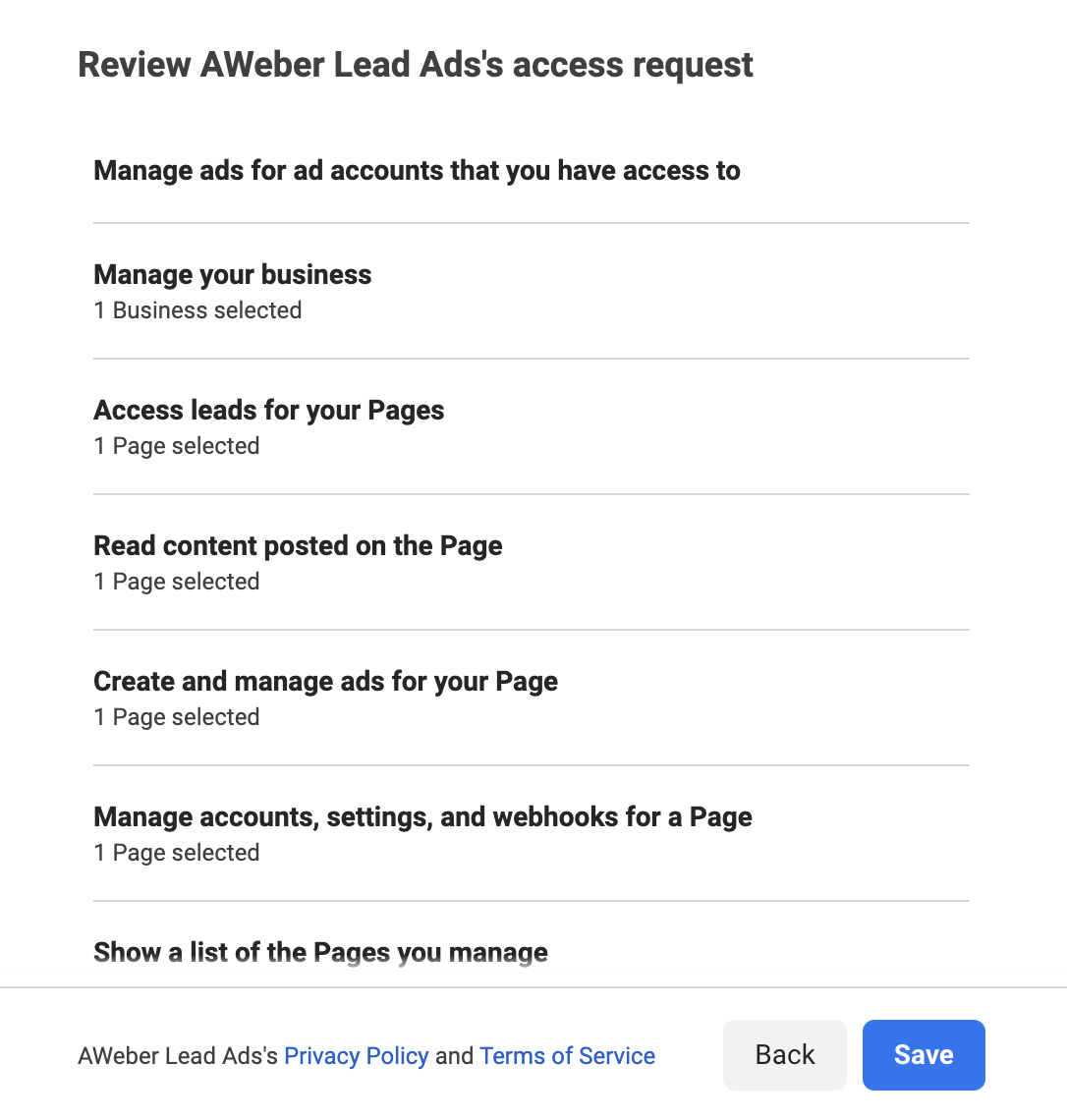
You will see one final review step, and can finish by clicking 'Save'.
-
Now, you're ready to create your rules inside of AWeber. We'll set your first rule for you!
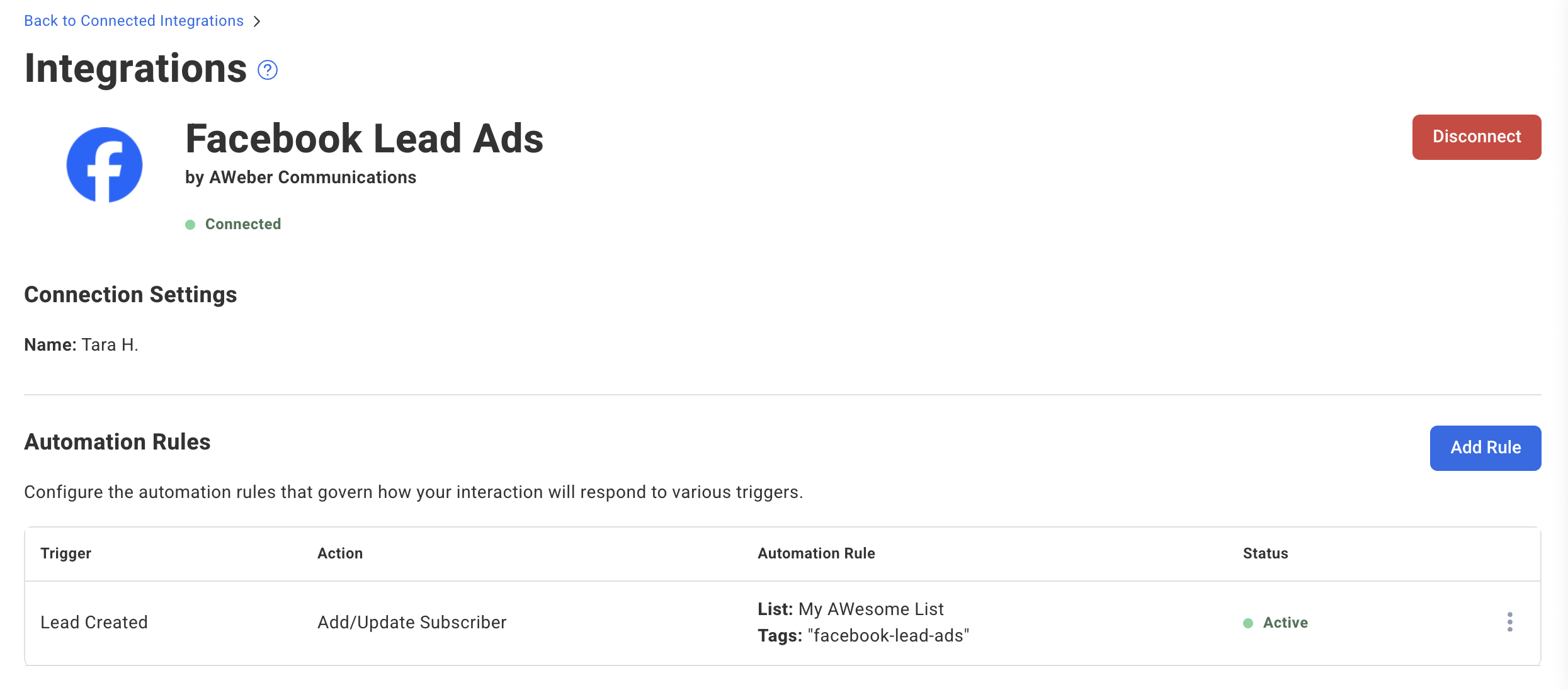
Otherwise, go ahead and click 'Add Rule' to set a new rule.
-
You'll be given a few options to set...
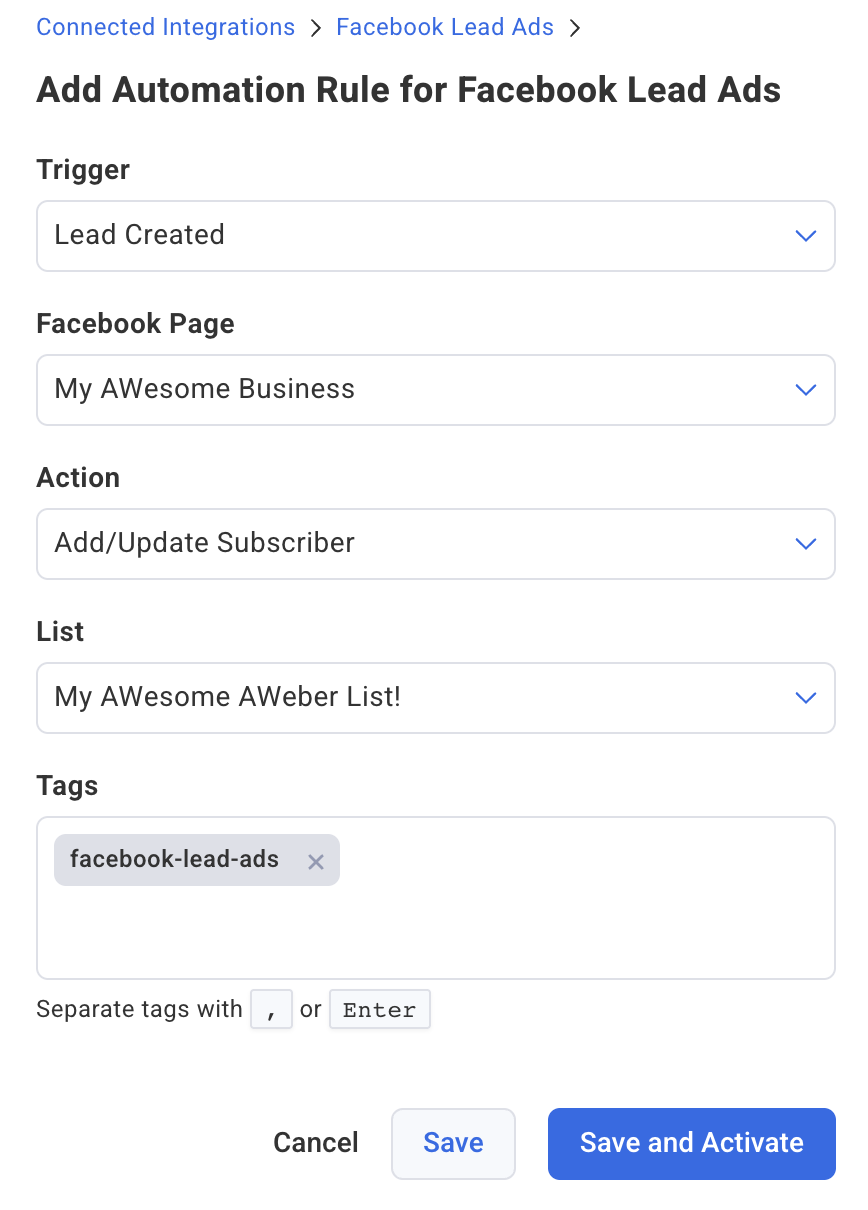
When you're ready to move forward, go ahead and click 'Save' or 'Save and Activate' to bring it live immediately.
Congratulations! You've connected AWeber to your Facebook Lead Ads account. Subscribers who sign up via your Facebook Ads will automatically be added to your list(s) with the settings you have configured.
Switching Between Facebook Ad Campaigns
Your AWeber integration connects to your Facebook Lead Form, not to individual ad campaigns. This means you can switch between different ads that use the same Lead Form without updating anything in AWeber - simply turn off one ad and turn on another in Facebook.
You only need to update your AWeber integration if:
-
You want to change which list subscribers are added to
-
You want to update the tags applied when someone signs up
To make these updates, go to Integrations > Connected Apps > Facebook Lead Ads, click the three dots, and select Edit. From there you can adjust your list or tag settings as needed.
Frequently Asked Questions
Can I connect more than one Facebook Lead Ads Account to AWeber?
The Facebook Lead Ads integration supports 1 Facebook Lead Ads account connected to your AWeber account. If you wish to set up automations for more than 1 Facebook Lead Ads account, you may need to use third party integration options such as Zapier.
Can I collect custom fields through my Facebook Lead Ad?
The Facebook Lead Ad integration collects the Name (including First Name, Last Name, and Full Name) and Email Address fields by default. If more fields need to be mapped, you will need to use third party integration options such as Zapier.