
Using our PayPal integration you'll have the ability to:
-
Add customers who make a PayPal payment to any of your lists.
-
Add a tag to a new or existing subscriber based on a purchase that was completed.
-
Add and remove subscribers from your lists who make recurring subscription payments through PayPal.
-
View PayPal purchases automatically through built-in Sales Tracking.
You can easily integrate PayPal with AWeber through our PayPal app located on the Integrations page.
API submissions from this integration will be added without having to confirm their subscription by default. If you would still like confirmation message sent, just contact our customer solutions team.
Step By Step Instructions
-
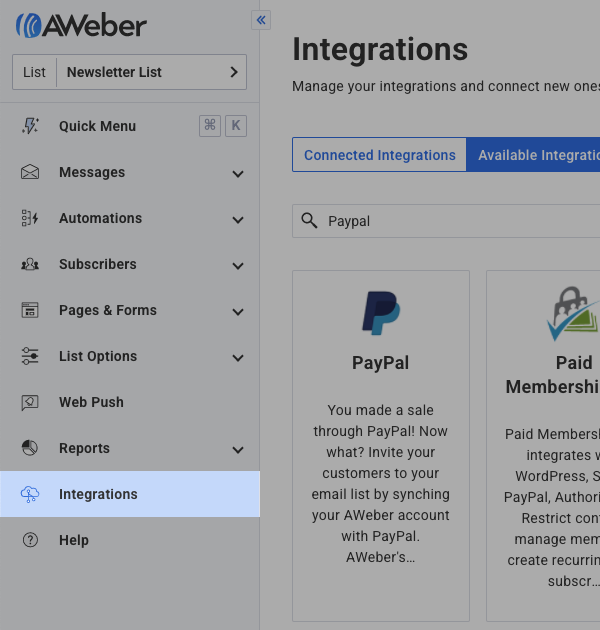
In your account, click the Integrations tab in the navigation bar on the left side of the page.
-
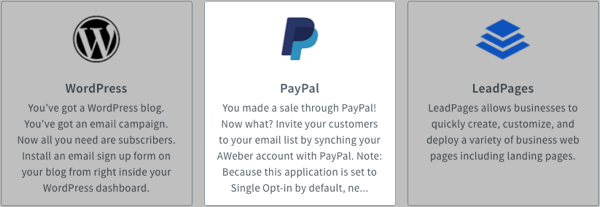
Find the PayPal app under the "Available Integrations" tab and click on it.
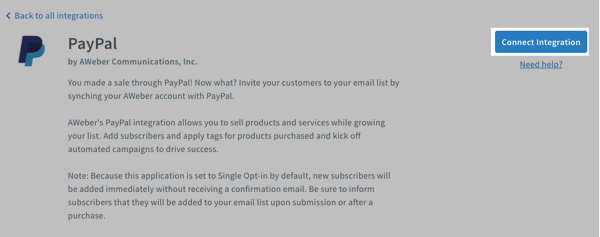
On the next page, click "Connect Integration".
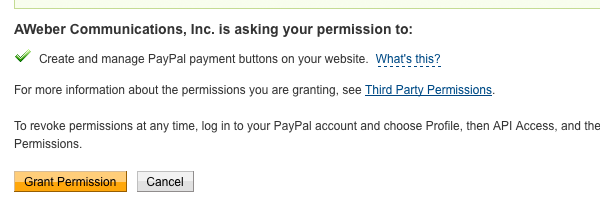
You may be asked to log in to PayPal at this point. After you're logged into PayPal, simply click "Grant Permission".
-
Back on the "Integrations" page, under "Connected integrations", click on the PayPal integration. Under "Connection settings," copy the "Notification URL."
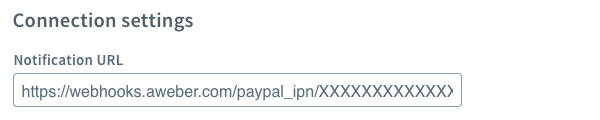
With that copied, go to the Instant Payment Notification page in your PayPal account (you may be asked to log into PayPal at this point), then find the "Choose IPN Settings" on this page and click it.
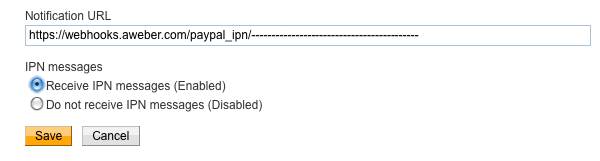
On the new page, paste the URL you copied into the Notification URL area, make sure that you click the radio button next to "Receive IPN messages (Enabled)", then click "Save."
-
Back in the the PayPal integration within your AWeber account, you can now choose the list to which you would like customers added using the drop-down menu under the "List automation" heading.
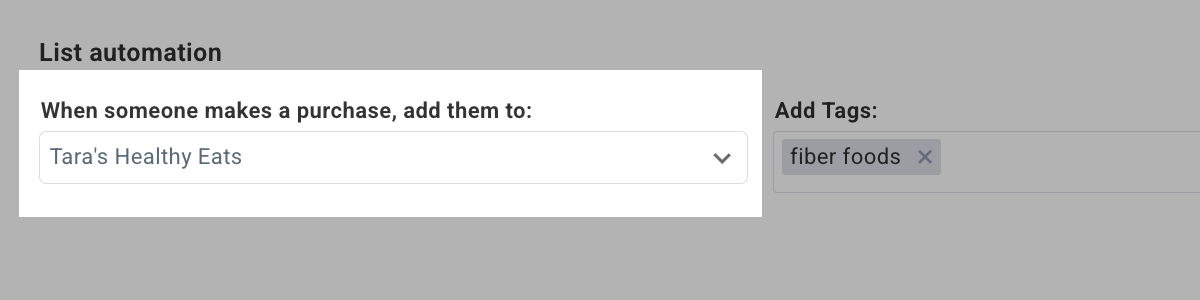
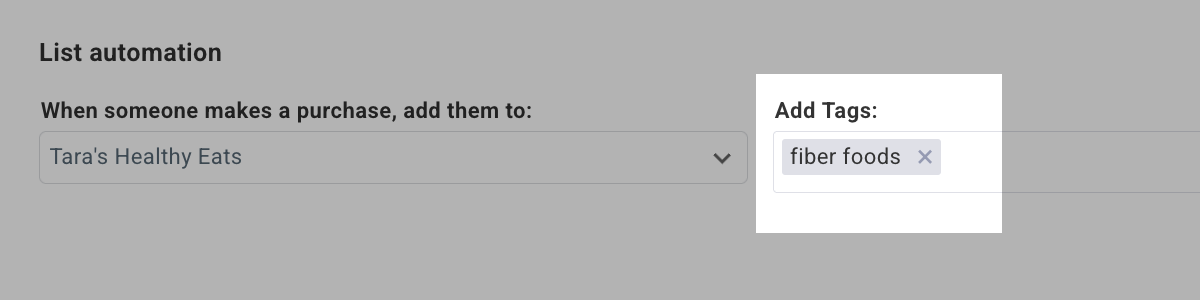
With that done, the PayPal app will start adding subscribers to the list you've chosen. You can also apply tags to subscribers when they make a purchase. Add the tags that you would like to apply to your subscribers in the "Add Tags" box. If you want to use multiple tags, separate them with commas.
PayPal Sales Tracking
Purchases made through the PayPal Integration will automatically be included in Sales Tracking. The sales will display on the Dashboard Sales Widget, Subscriber Information and in Reports.
Sales data displays in a buyer’s Subscriber Information under the Subscribers tab.
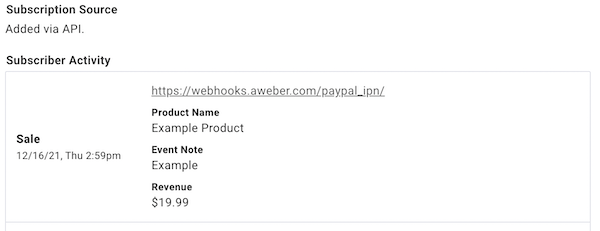
You can also view sales made via PayPal in the Reports tab under Sales over time.
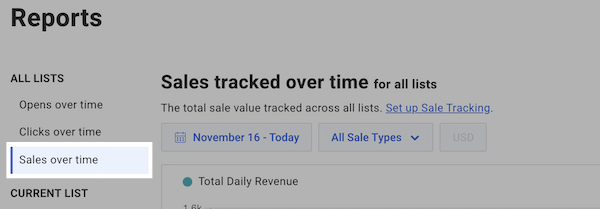
A breakdown of each sale displays below the Sales tracked over time graph. The sales type will read as Ecommerce along with any sales made using Landing Pages.

Only sales made after the implementation of this feature on December 15, 2021, will appear under sales tracking.
PayPal Buttons
Certain PayPal accounts provide you with buttons for customers to purchase your products from you. You may not only want to market your products through email, but you may also want to sell your products directly through email as well.
Troubleshooting Common PayPal Integration Issues
If you've connected your PayPal account to AWeber but subscribers aren't being added to your list, use the following troubleshooting steps:
Mismatched Notification URL
The most common issue is when the Notification URL in your PayPal IPN settings doesn't match the Web Hooks URL from your AWeber account. This can occur when:
-
You're using a third-party "Buy Now Button" that only uses PayPal as a payment processor, not PayPal's standard button
-
Other integrations have changed your PayPal IPN settings
-
The URL was manually modified or not set up correctly during initial integration
Solution: Verify your Notification URL matches the Web Hooks URL from AWeber > Integrations > PayPal. The URLs must be identical.
"Account Not Verified" Error
If you see this error in AWeber, your PayPal account must be verified before the integration will function. Log into your PayPal account and complete the verification process.
Delays in Adding Subscribers
PayPal may take up to 2 hours to report new customers to your AWeber account. If a subscriber hasn't appeared immediately after purchase, wait a few hours before troubleshooting further.
Additional Limitations
-
Multiple PayPal accounts: Only one PayPal account can be integrated with your AWeber account at a time
-
Role-based emails: Subscribers using role-based email addresses (such as info@, admin@, support@) will not be added to your list
Subscriber listed as unsubscribe
-
If you have a subscriber make a purchase and they are listed as an unsubscribe in your list, you will see sales activity tracked for them in their subscriber activity. Also, if they are unsubscribed, no messages are going to be sent; a recent purchase would not resubscribe a customer.
Still Need Help?
If you've verified your Notification URL matches and are still experiencing issues, contact our Customer Solutions team with:
-
The login email address for your account
-
An example of a subscriber who was not added after purchasing that should have been added
-
A screenshot of your PayPal IPN message details page
-
The full text from your PayPal IPN Message box
-
Your PayPal Transaction ID
Need to set up your AWeber account first? Get Started Now.