
GetSiteControl helps you create widgets for your websites to meet all matter of needs. Subscription, survey, contact, and other forms can be easily placed on your website with the code they provide and customized to your own design. With the AWeber integration, the emails you collect through these forms can be added directly to your AWeber lists.
In this article we will walk through how to connect GetSiteControl to your AWeber account.
Step By Step Instructions
-
Inside your GetSiteControl dashboard, Click on "Widgets" at the top of the screen, then select "Edit" under the widget/form you would like to integrate with AWeber.

-
Then, click on "Integrations" at the top of the web page.

-
Click "Add application," then select AWeber from the list.

-
You'll be prompted to enter your AWeber login details. Once you've entered that information, click "Allow Access."

-
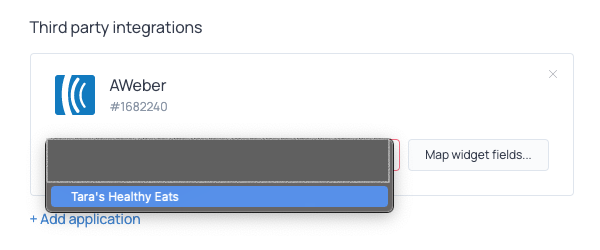
Now that AWeber is connected, you can link up any Subscribe, Contact, or Survey form you have. For the following example we'll be using a Subscribe form. Click "choose list to connect" and select the list you wish to connect with your form.
-
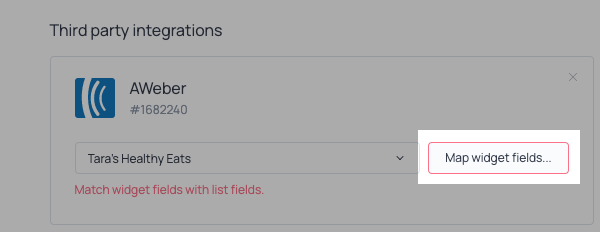
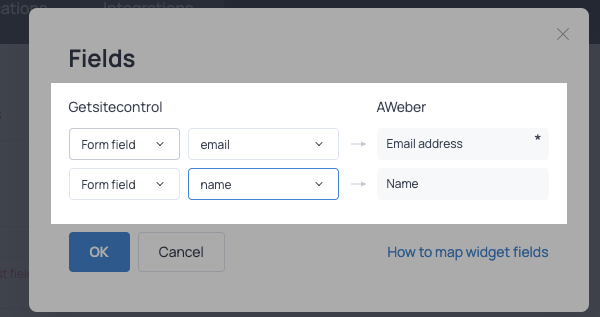
Match the fields of your form to those you have in AWeber by clicking "Map widget fields."
Once you have mapped the related fields, click "OK."
-
Click Save and close to register your work.

Congratulations! You've successfully connected GetSiteControl with your AWeber account. You can now access your AWeber lists from GetSiteControl to connect your forms to pass subscribers automatically.