
If you would like to add subscribers to a specific Campaign based off their choices in a form, you can do so by tagging a custom field. This article will walk you through how to apply Tags to a custom field in your Sign Up Form.
Step By Step Instructions
-
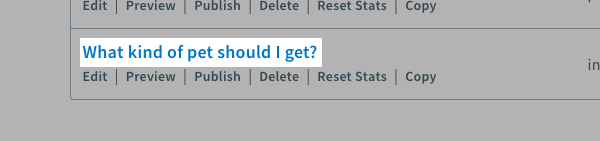
First, click on the "Sign Up Forms" tab in your list and select the form you would like to edit.
-
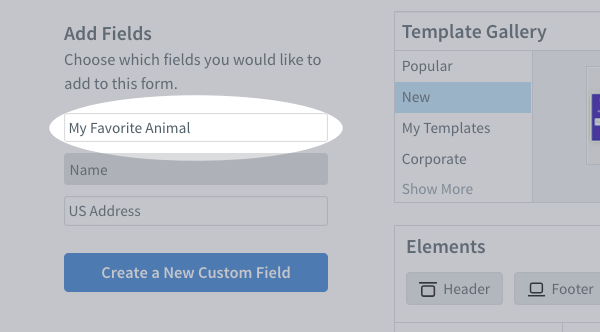
Next, select the custom field you would like to apply tags to in your form.
-
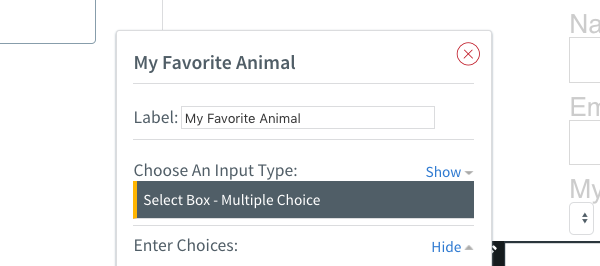
Now, select the type of "Input Type" you would like to use for this custom field, for this example we'll use "Select Box".
-
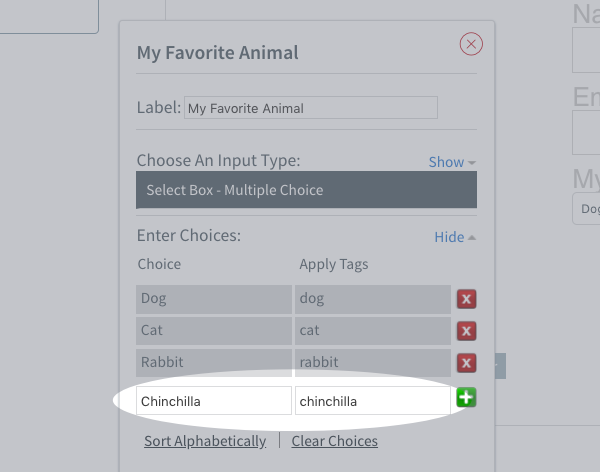
Once you've selected the type of input you want to use, add in the choices your subscriber will be able to select on the form.
-
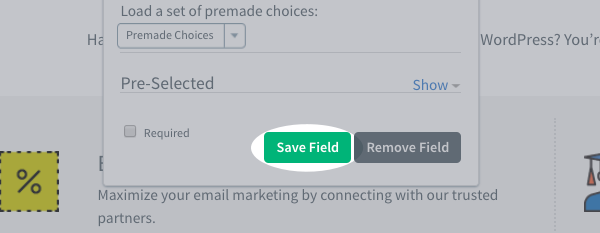
After you've added these Choices, click the green "Save Field" button in the bottom of the toolbar.
Note: When a subscriber signs up through this form, they will automatically be tagged with their selection in the "Subscribers" page.
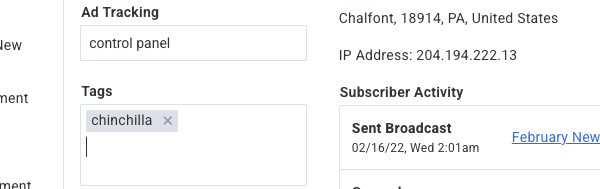
Congratulations! You've successfully tagged a subscriber by their selection in a custom field. You can now send a targeted message to them via Campaigns.