
In this article, we explain how to set your workflow to allow subscribers to enter it multiple times. By looping your workflow, you can ensure that subscribers receive the same workflow more than once.
AWeber's workflow feature is highly customizable through the use of Tags. You are able to apply Tags to subscribers based on clicks and opens, trigger a unique series of messages, and remove subscribers from a workflow. Combining all of these features gives you the ability to create a unique email sequence for each of the subscribers that are added to your list.
Workflows can be configured to allow subscribers to progress through them, from start to finish, even if they had previously received the entirety of that workflow. This can be particularly useful in order to maintain an organized set of workflows, and will negate the need to duplicate a workflow.
Note: unsubscribing and re-subscribing a subscriber will not cause them to restart a workflow. Once a subscriber is re-subscribed, they will continue from where they left off in the workflow, as long as they were not fully deleted.
Step By Step Instructions
-
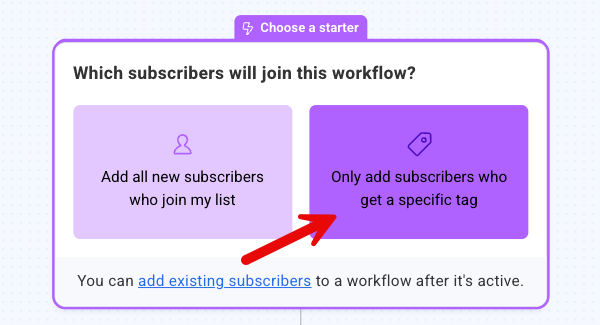
After creating your workflow, you'll need to make sure that your workflow trigger is listed as 'Tag Applied'. Since the 'On Subscribe' trigger will only function for new subscribers when they are added to your list, there is no opportunity to have subscribers restart a series based on the action of subscribing to your list.
-
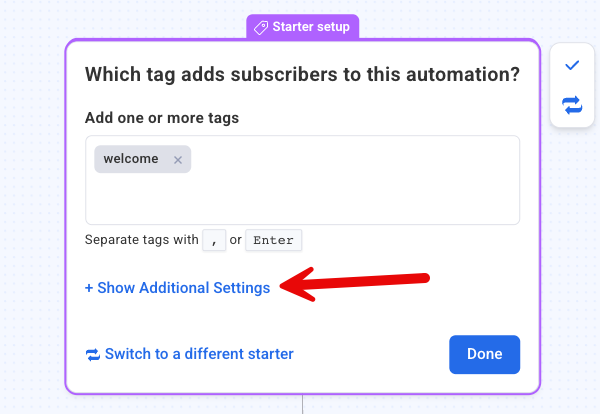
After setting a triggering tag, click "+ Show Additional Settings" to reveal the workflow options.
-
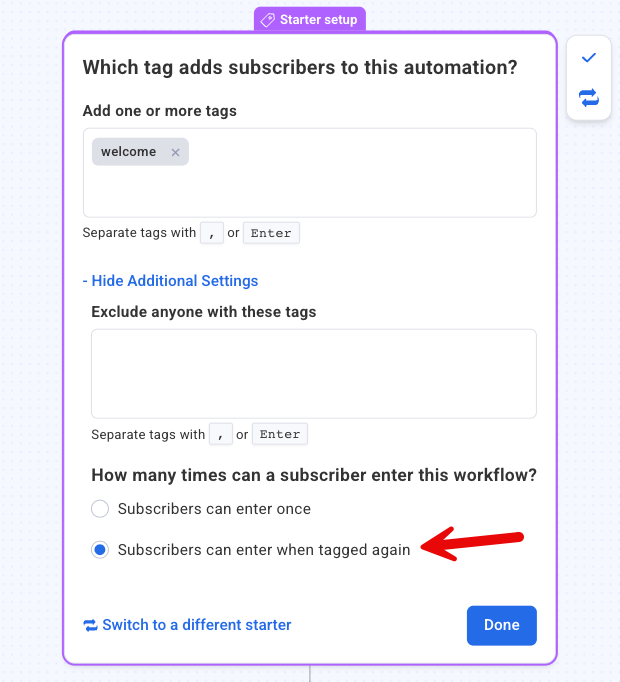
Within the additional settings, you'll be able to specify whether a subscriber can re-enter your workflow when the trigger tag is applied again. If you would like subscribers to have the ability to enter your workflow multiple times, select "Subscriber can enter when tagged again".
Note: For a subscriber to re-enter a workflow, they must:
a. Reach the end of the workflow OR
b. Be from the workflow
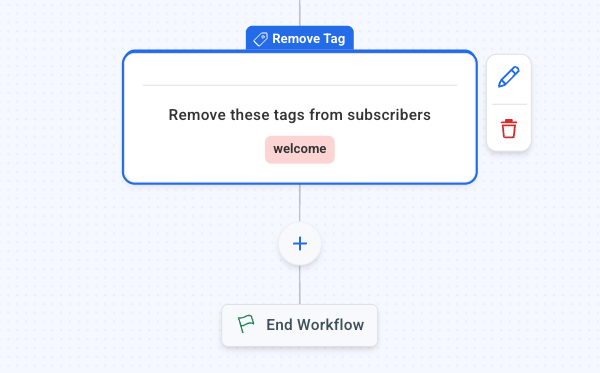
Then they must receive the trigger tag again. A tag cannot be applied to a subscriber if they already have it, so you'll need to make sure you have the trigger tag removed from subscribers who complete the workflow. Using the "Add Tag" element within the workflow builder will enable you to list any tags that you'd like removed from subscribers that reach that point in your campaign.
Additionally, workflows have a 15 minute lockout period before a subscriber can reenter them after the trigger tag is removed. Once this interval has passed, subscribers can begin the workflow again. Reentry attempts made within the 15 minute lockout period will be ignored.
-
With the trigger tag removed from your subscribers upon completing your workflow, it can now be applied once again which will start subscribers at the beginning of the series, regardless of whether or not they have entered into that workflow before.
Congratulations! Subscribers can now re-enter this workflow after previously completing it.
Understanding Workflow Send Counts and Re-entry
Workflow sends are counted individually each time a message is delivered to a subscriber, which can accumulate quickly when using workflows with re-entry enabled. When a subscriber re-enters a workflow, every message they receive during each pass through the workflow counts as a separate send. For example, if you have a workflow with 3 messages and a subscriber re-enters it daily, that's 3 sends per day per subscriber (21 sends per week per subscriber). If you have multiple workflows running simultaneously with re-entry enabled, each workflow counts its sends separately, so a subscriber in two daily workflows with 3 messages each would generate 6 sends per day (42 sends per week). This means your daily usage can grow substantially when combining workflow re-entry with multiple active workflows and a growing subscriber list. To manage your send volumes, consider the frequency of re-entry triggers, the number of messages in each workflow, and whether all subscribers need to be in multiple workflows simultaneously.
Note: Repeat email sends will not display in due to analytics limitations.
Reapplying a Tag to a Subscriber
If you need to reapply a tag to a subscriber who has already received it (for example, to restart them in a workflow), you'll need to follow these steps:
-
Remove the existing tag first: Navigate to the subscriber's profile and delete the tag you want to reapply. You can do this by:
-
Going to the Subscribers page
-
Finding the subscriber
-
Clicking on their profile
-
Removing the tag from their record
-
-
Once the existing tag was removed, reapply the tag: Once the tag has been removed from the subscriber, you can then reapply it using one of these methods:
-
Manually add it back to the subscriber's profile
-
Use bulk actions to apply the tag to multiple subscribers
-
Import a list with the tag included
-
Important: Simply applying a tag that a subscriber already has will not trigger any workflow or automation actions again. The tag must first be removed and then reapplied for the subscriber to be processed as if they are receiving the tag for the first time.